---
title: "HTML / WWW editor"
description: "Check how you can add external sources to the app or design an additional view in HTML"
url: https://help.meetingapplication.com/en/articles/4842443-html-www-editor
collection: "Modules"
updated: 2026-10-08
language: en
alternates: [pl]
---
# HTML / WWW editor
Check how you can add external sources to the app or design an additional view in HTML
## How to add external pages or redirects as a module in the mobile app?
This is the most flexible module in the app that you can easily adjust to your needs. The built-in HTML/CSS editor gives you a lot of options to create content with a dedicated look. Everything here depends on you and your creativity. You can create categories that properly split content by type or topic, or by access for particular groups. This module also lets you add links that redirect users to external pages, e.g. advertising or information pages. Within each of the added categories you can add a page written in HTML or a link to an external page.
> **Info:** When adding long HTML content in the admin panel, remember that distributing the content to users’ phones may take a moment and can temporarily freeze the app.
## HTML/CSS editor
> **Warning:** The HTML/WWW module works only in the mobile app. To add any HTML content to the event’s Landing Page, use the free iFrame module available in the page configurator of your event. [LEARN MORE](https://help.meetingapplication.com/pl/articles/9497446-dodawanie-modulu-iframe.md)
To add a new page with HTML code in a category, from **Create** → **Content** select the **HTML / WWW editor** module in the side menu, and then **(+) Add new category**.
**Name the new category**, and then choose **(+) Add HTML page**.
Creating a page requires giving it a name. This name will be displayed in the list of all created HTML sheets when you add more than one page in the module. If there is only one page, after selecting this module in the menu, the user will be taken straight to the place where the content you created will be visible.
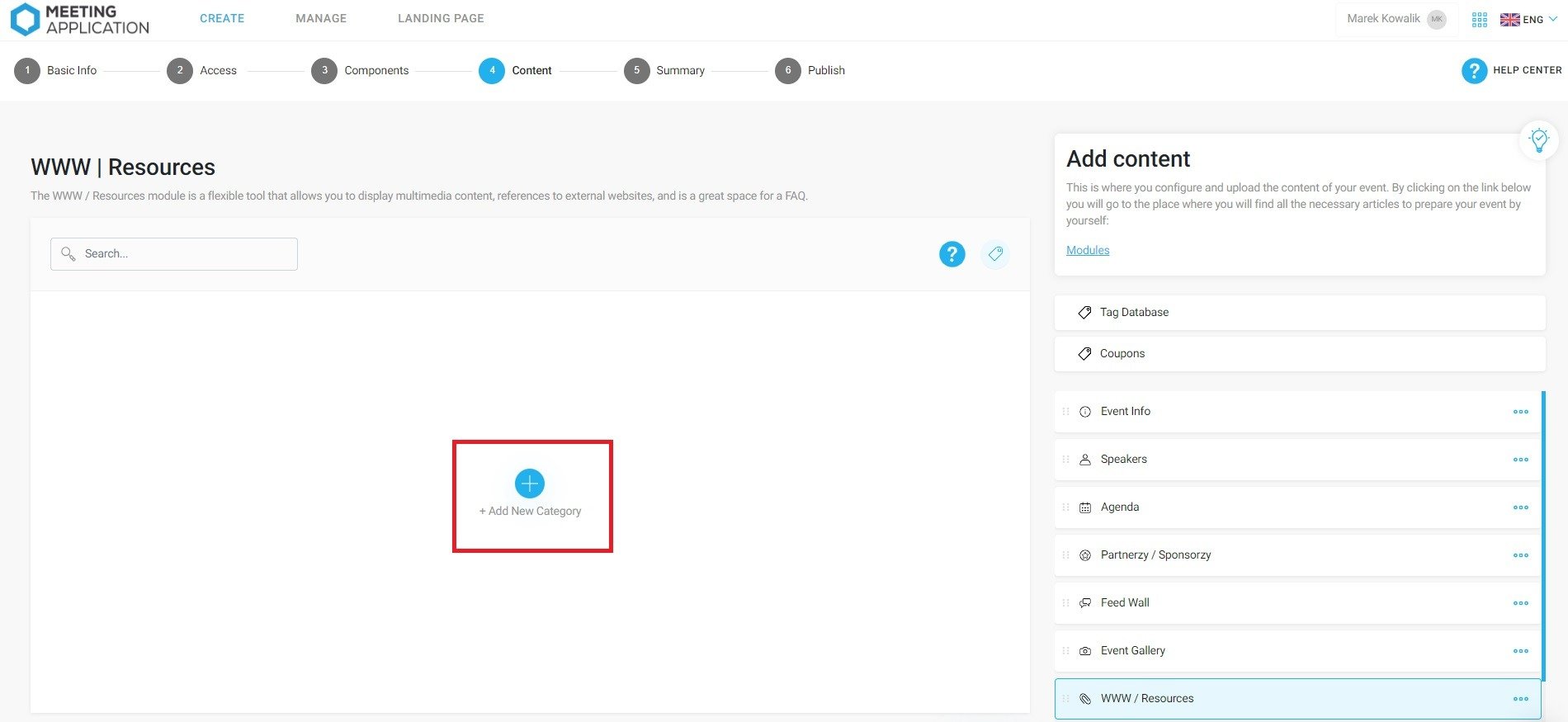
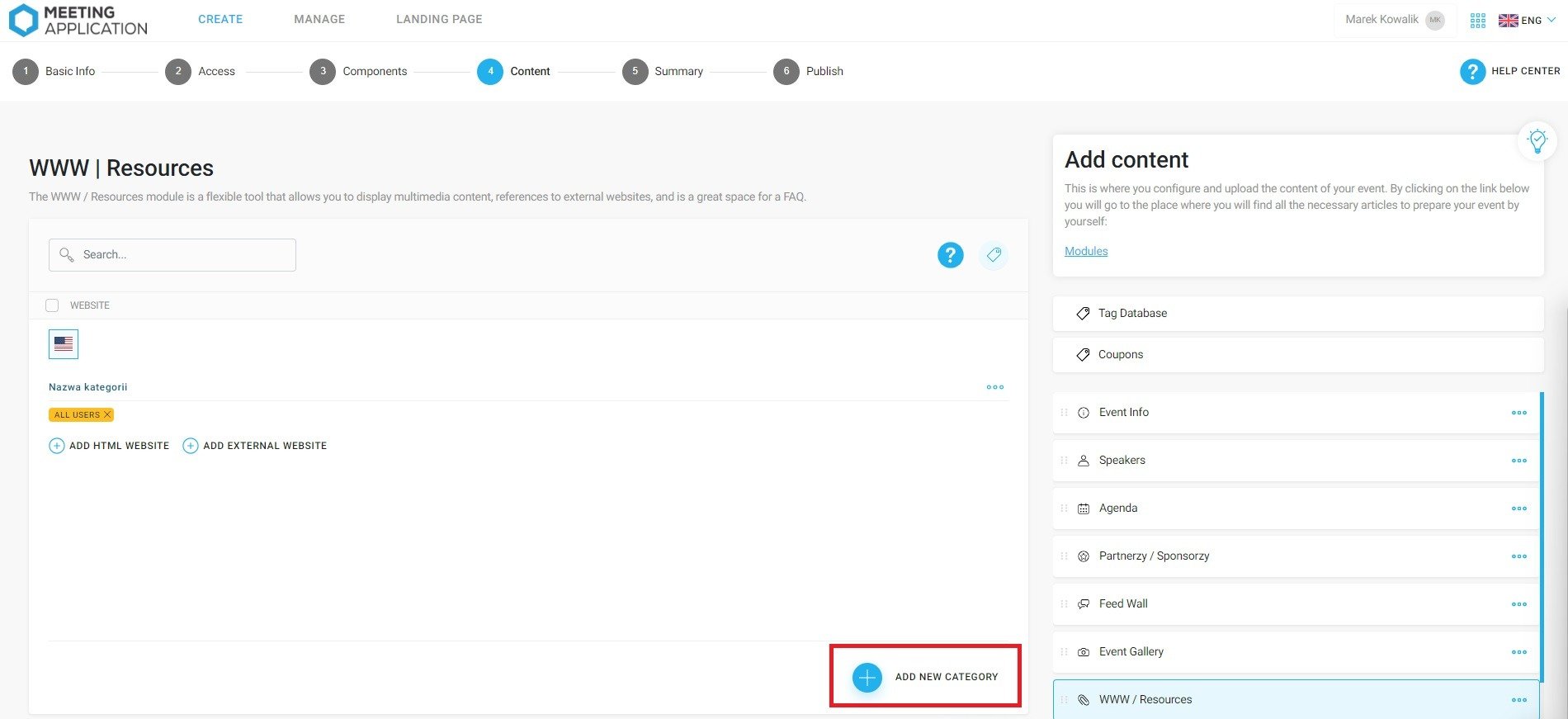
After creating the first category, the button for adding more will appear at the bottom of the page instead of in the middle.
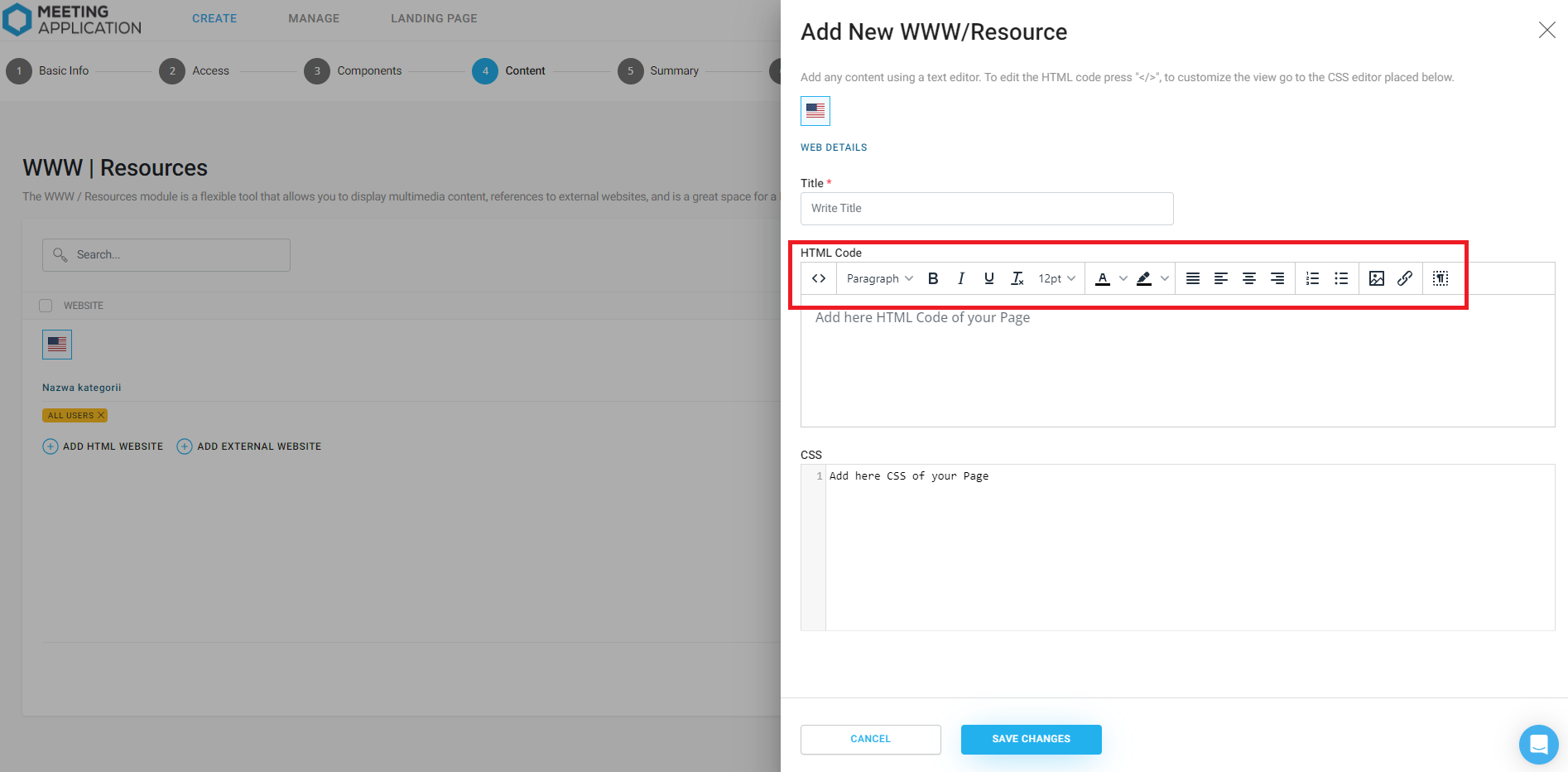
In the "**Add new www**" window, in the top frame of the panel, you can see a text editor that provides a range of tools for formatting text and also inserting graphics.
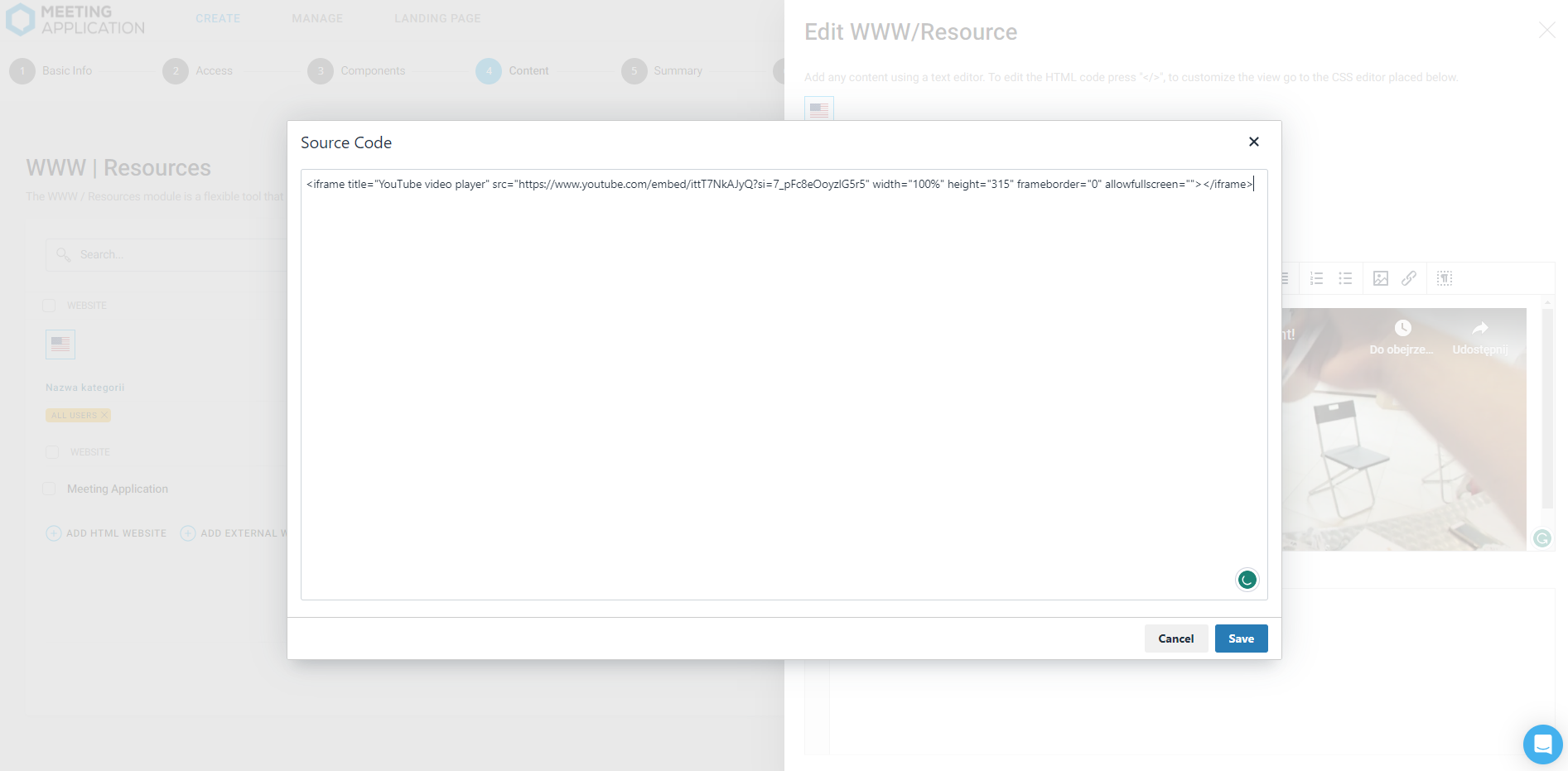
If you want to make changes to the HTML code, choose the "**< >",** button from these tools to enter its edit mode. This lets you, for example, embed a YouTube video on this page without having to leave the app to watch it.
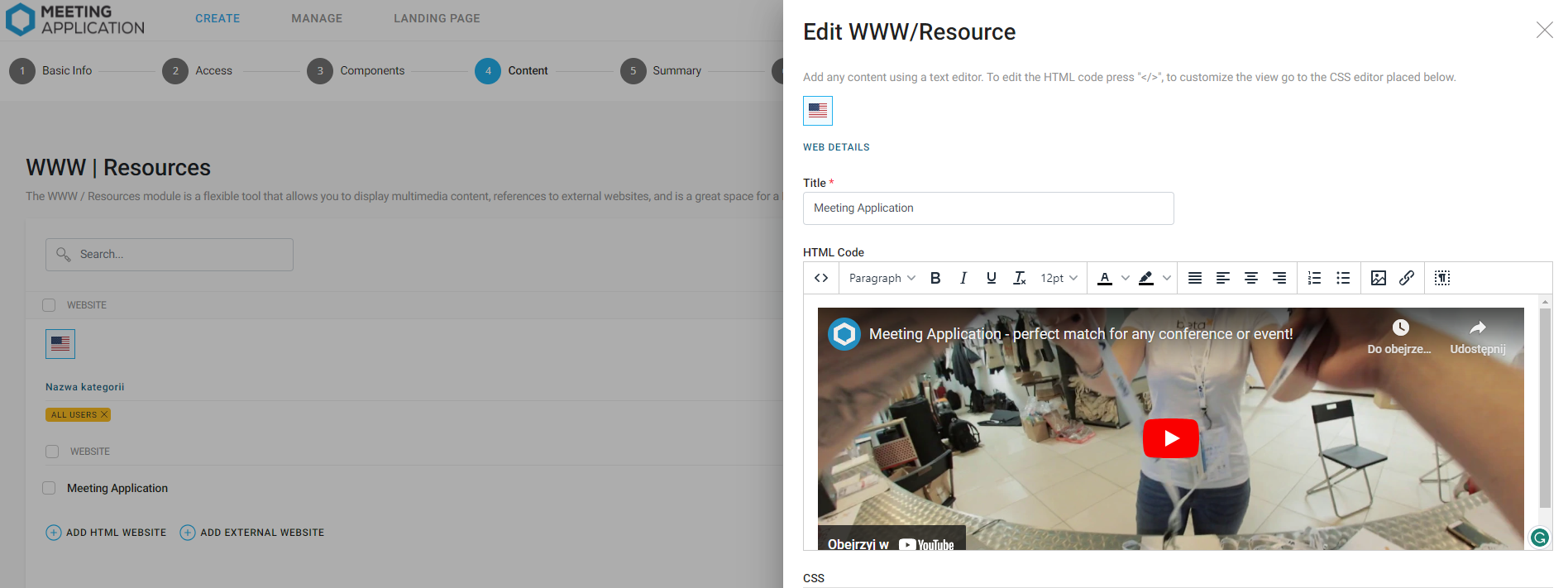
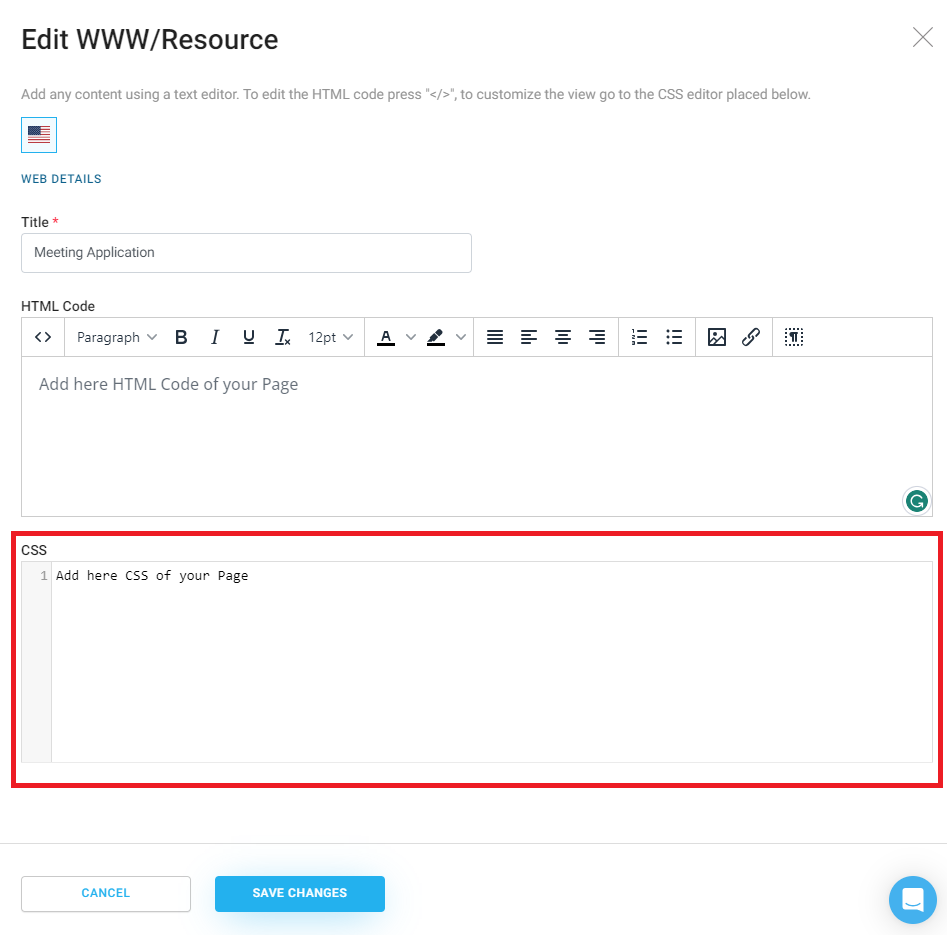
The content you enter can also be styled with CSS, which requires knowledge of HTML and CSS coding_._
## Examples
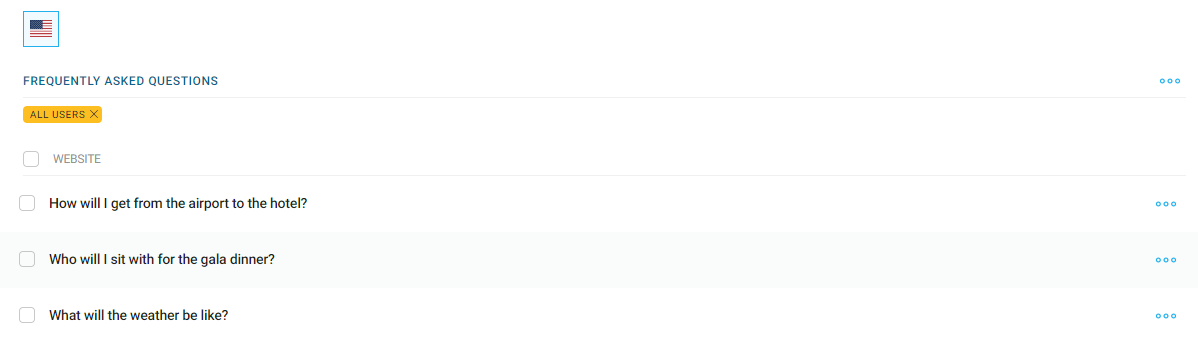
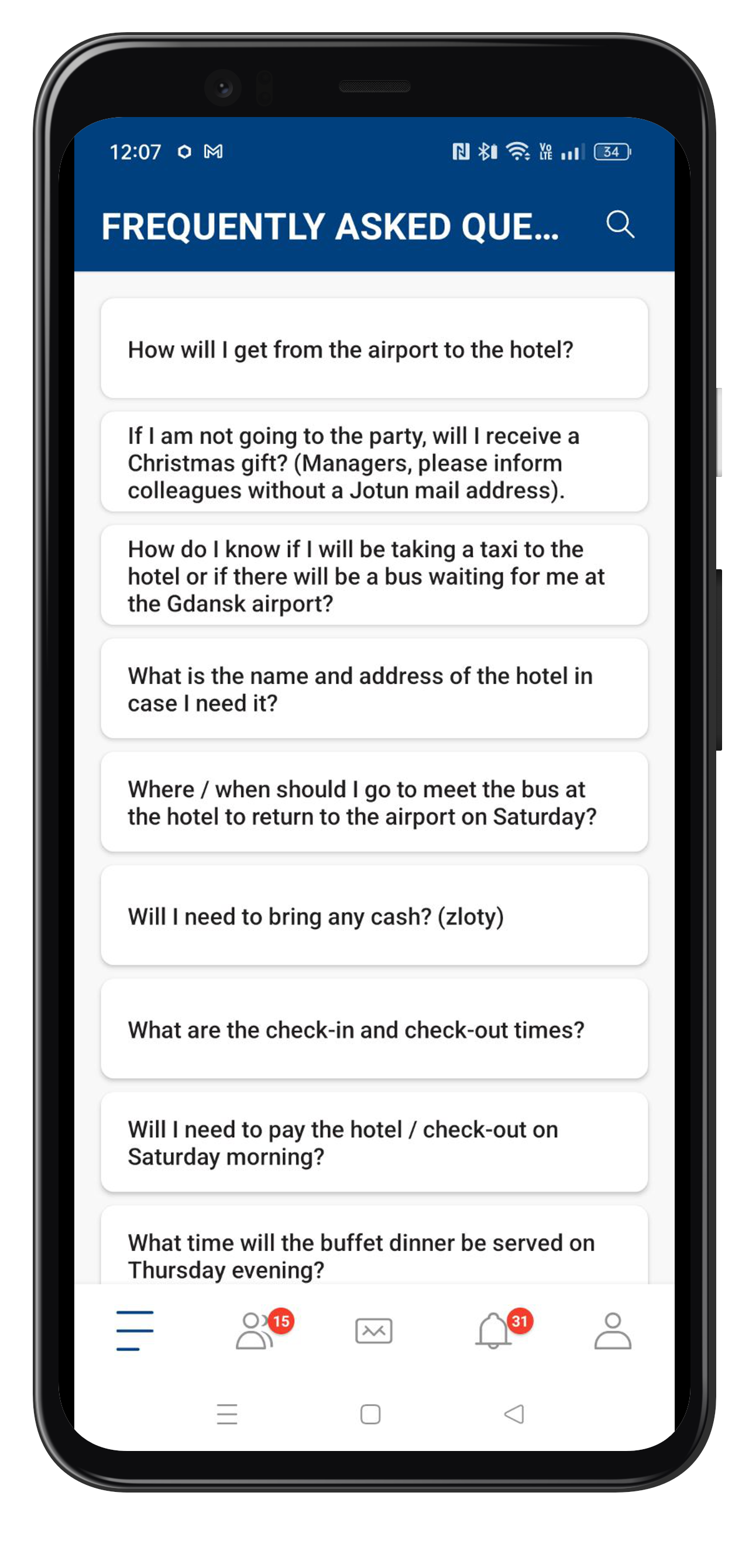
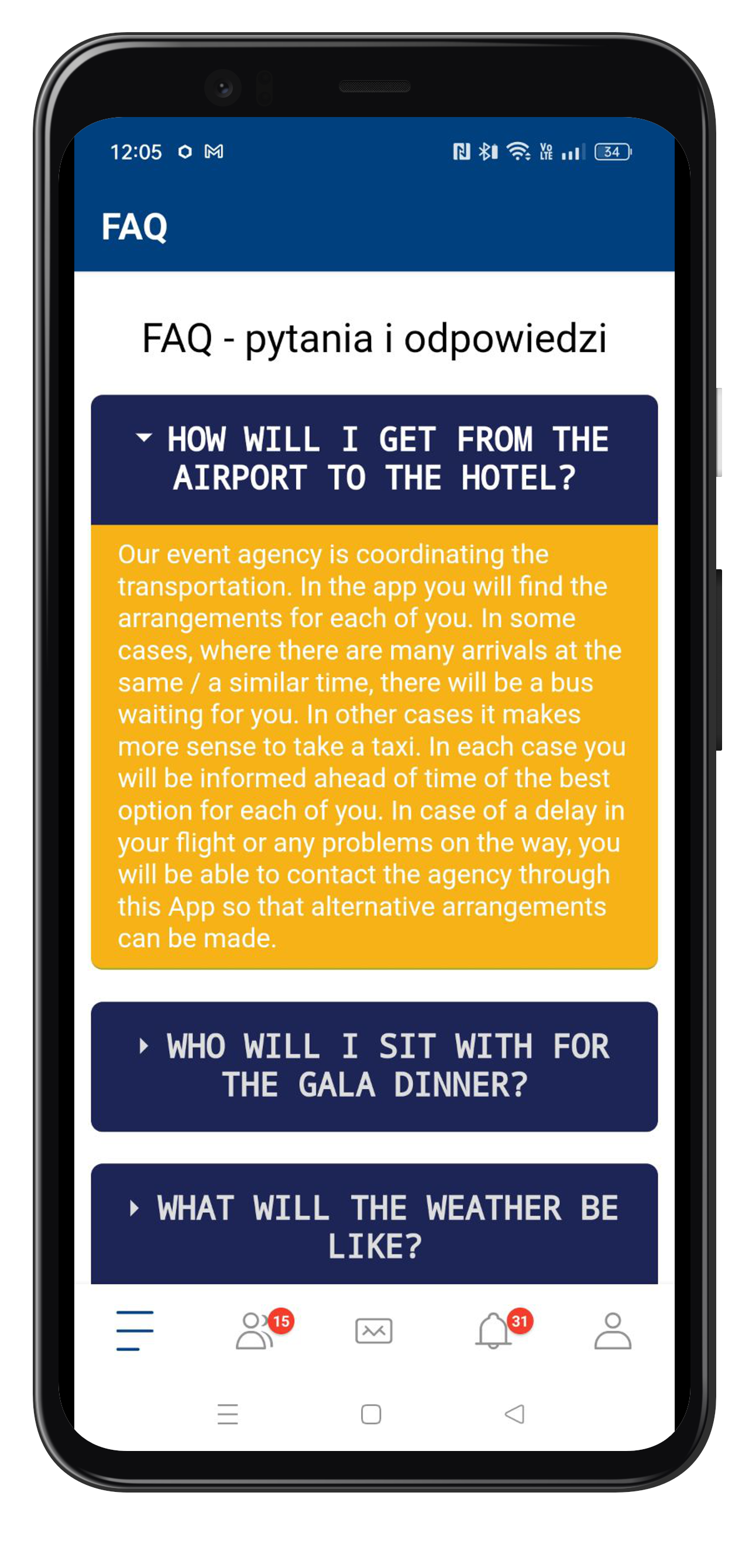
Below you’ll see examples of what an FAQ module can look like when created in a standard way and when using CSS.

**Example #1:**
**Result #1:**
**Example #2 CSS:**
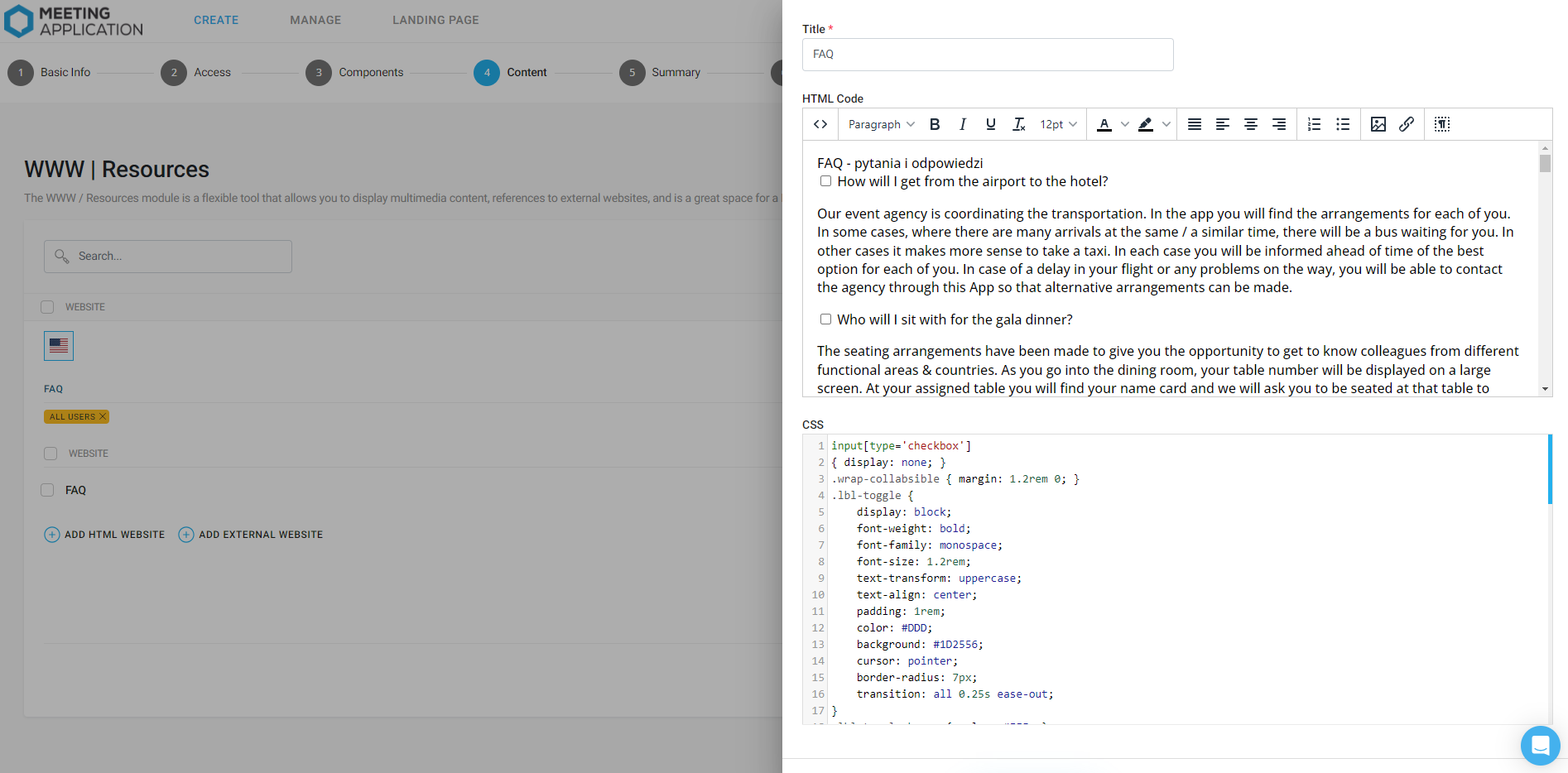
**Effect #2 CSS:**
## Adding an external link to the mobile app
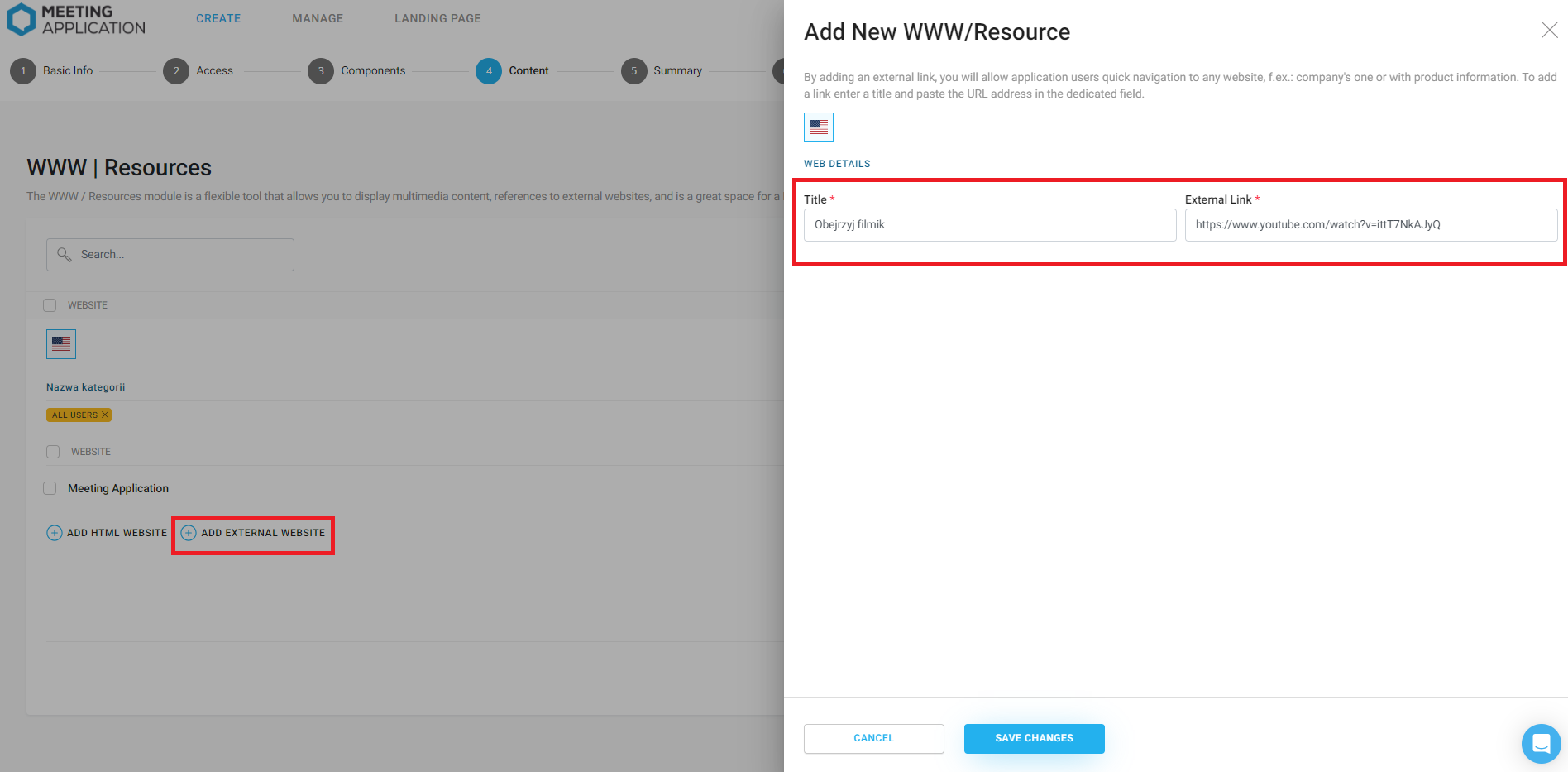
To add an external link in a category, choose the option **(+) Add external page**, then enter the URL of the link and the name of the button that will lead to it. Adding a single link will make the user, after clicking the WWW module in the side menu, automatically redirected to the external page.
If you add more than one link, the module will show a list with the page titles, and clicking the selected label will take the user to the external source.
## Examples of using the WWW module in a mobile app
## FAQ
In the **HTML / WWW Editor** module, create categories where subpages on different topics will be located. This is a great way to provide answers to the most frequently asked questions you expect from event participants.
## Promo Codes
Are your exhibitors and partners preparing special promotions for event participants? Use this module to create a promo zone with discount codes. Add graphics that encourage people to take part in the promotion along with links redirecting to selected stores. Remember that every promotion needs terms and conditions added.
## Contests
Running contests as part of your event and not sure where to put the rules and the copy encouraging people to join? You can use this module to create a section for contests. This is where you’ll create subpages where everything is clear, easy to follow, and encourages everyone to join the fun.
## Graphics
do you need space to show ad creatives, scientific posters, or infographics to share with event attendees? This module will let you do that.
## An event in many places at once?
Does your conference require walking from building to building? Make it easier for guests to get around and get to know each place by adding information about each building and the events taking place there, and by adding static maps of the venues.
Have a great event with Meeting Application!