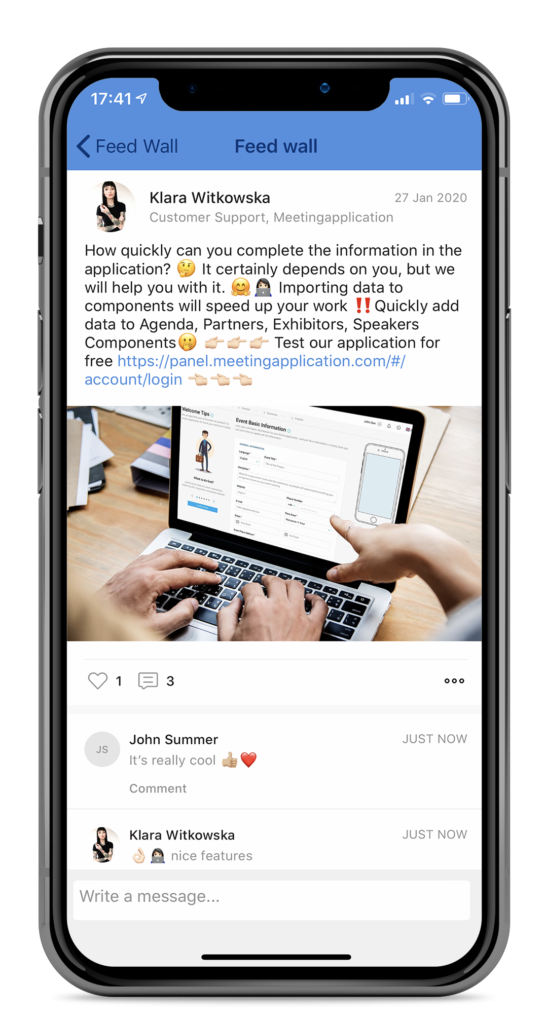
Event Forum (Feedwall) is an internal, interactive notice board and discussion space for your event. It works similarly to popular social media – participants can post (also with photos), comment, and leave likes. The module is available in the Mobile App.
It’s the perfect place for networking, sharing experiences, arranging shared rides, or creating dedicated communication channels (e.g. only for speakers or volunteers).

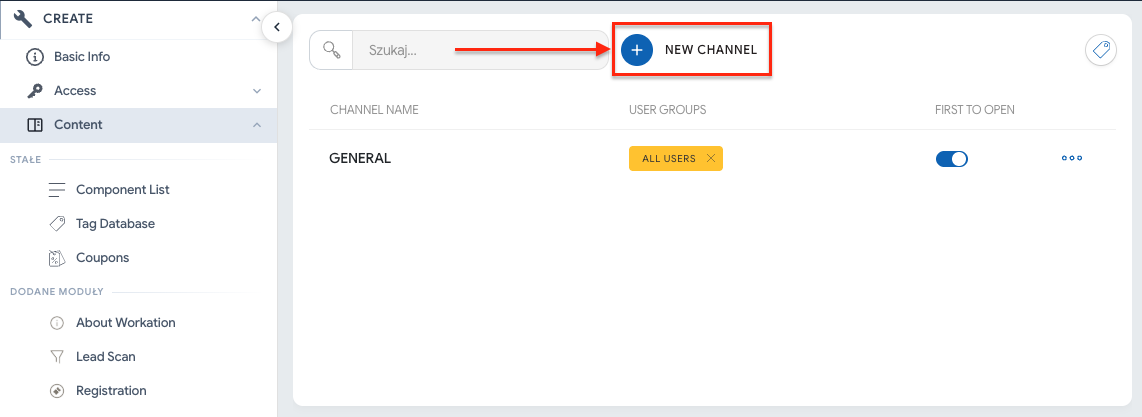
When you enable the Event Forum module in the admin panel, the system will automatically create a basic general channel (General).
It’s visible by default to all logged-in participants (it has the All users group assigned). If you want all communication at the event to take place in one shared space, you don’t have to configure anything else. The module is ready to go!
Creating themed channels helps keep discussions organized. You can create a separate channel for participants, a separate one for exchanging information between your event staff, and a separate channel for questions to the Organizer about the event. To do this:
In the admin panel, go to the side menu, CREATE → Content tab.
Select the Event Forum module.
Click the (+) Add channel button at the top of the page.
Enter a clear Channel name (e.g. ""Car sharing", "Exhibitor zone", "Networking"). A clear name will help participants choose the right place to discuss.
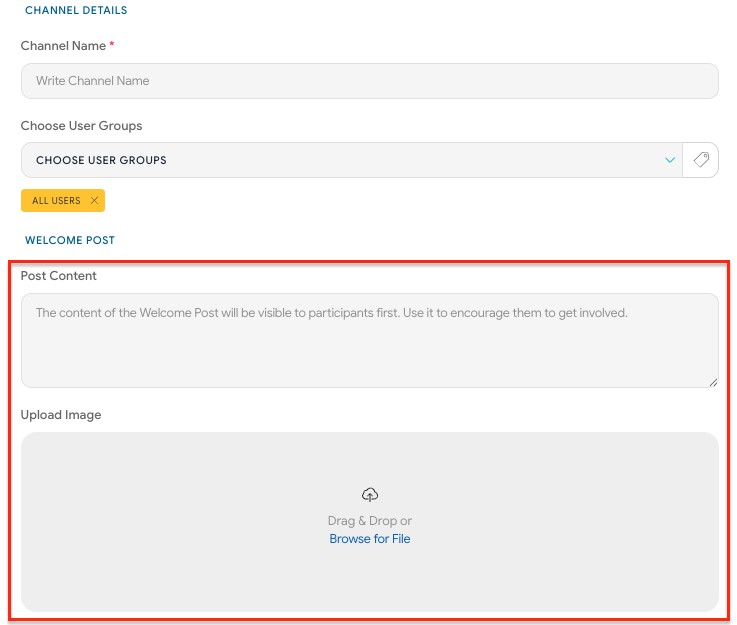
When creating or editing a channel, we strongly recommend adding a Welcome Post. This is a message that will be permanently pinned at the very top of that channel.
Why is it worth it? A welcome post is the perfect place to welcome your guests, set the rules for a given channel, share logistical instructions for the whole event, or provide information from a sponsor. It’s also a great place to encourage event participants to communicate openly and share their experiences. To create it, fill in the following in the channel settings:
Treść posta (Post Content)
Załaduj obrazek (Upload Image) – posts with graphics engage recipients much better!
You can create private channels visible only to specific audience groups (e.g. a channel only for VIPs, speakers or volunteers). For this purpose we use User Groups, which need to be properly configured beforehand. You can find a detailed guide on how to do this in the article: Managing app content.
You can create private channels visible only to specific audience groups (e.g. a channel only for VIPs, speakers or technical support). For this purpose we use User Groups.
Before you assign a group to a channel, make sure the right tags are attached to the entire module.
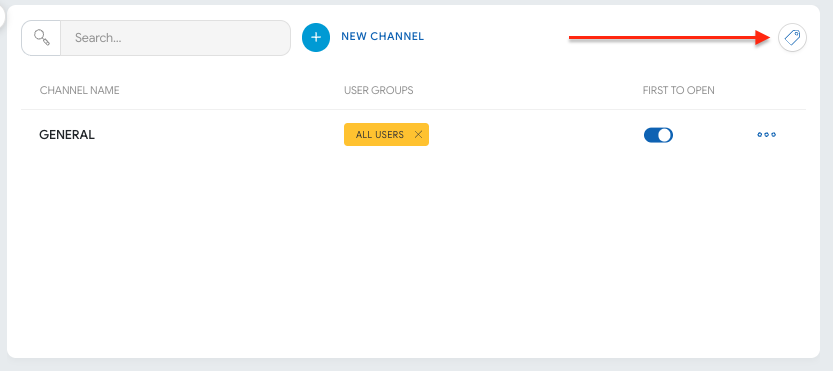
Go to Content → Events Forum.
In the top right corner click the label icon (module tag settings).
Add group tags (e.g. VIP, Staff) that will be able to use this module. Note: Newly created channels will now automatically pull these tags. If you created a channel earlier, you need to update it manually (Step B).
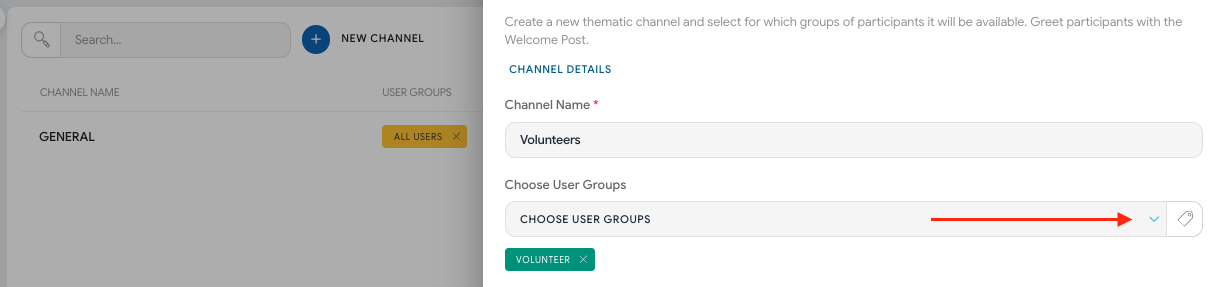
Go to editing of the selected channel (or create a new one).
Go to the Choose User Groups section (Choose User Groups).
Select the group tags that should have access to this channel.

As an administrator, you have full control over what appears on the Event Forum and you can remove unwanted content on an ongoing basis.
How to moderate posts?
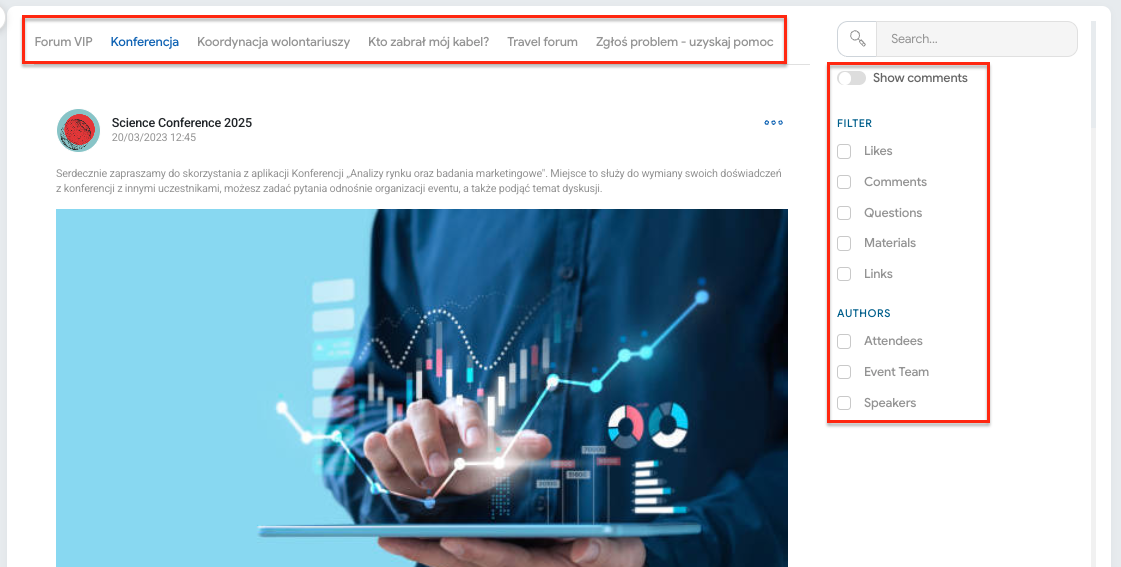
In the side menu, select MANAGE → Event forum.
From the top bar, select the channel you want to review.
Use filters and filtering by authors of posts/comments
Turn on the comments view
There you’ll see a preview of all posts and comments from participants. From here you can delete (three dots → trash icon) any entries you consider spam or inappropriate content.
We encourage Organizers to take an active part in the life of the Event Forum to keep participants engaged. Regularly add posts with important information and ask questions that will prompt participants to join the discussion.
If you publish a post that’s especially important, send a PUSH notification with a redirect (deeplink). This way, after clicking the “push”, the participant will automatically land in the right place on the forum. It’s a great way to make sure that key information or important threads don’t slip by anyone. You can learn more about PUSH notifications in this article.
Have a great event with Meeting Application!