The Business Matching component lets participants schedule business meetings during the event. To start the configuration, add the Schedule meetings component in the panel, and then choose the right Business Matching Type: Semi Ride or Strict Ride.
In the Meeting Application, business meetings can work in two modes:
Semi Ride – allows meetings between app users only within time frames defined by the admin. For this to work, the admin first has to configure Business Matching sessions by defining available days, hours, meeting duration, and available locations. Based on that, users pick a convenient date and place for the meeting.
Strict Ride – in this mode, users can’t create meetings in the app on their own. All meetings are scheduled only by the admin
To start configuring the component, first add the event days by clicking the “+” icon at the top of the module. If the days were already added earlier in the Agenda component, they’ll automatically be visible in the Business Matching component too. It also works the other way around — the days in both components are shared.

The next step is to create a session that defines the rules for scheduling meetings.
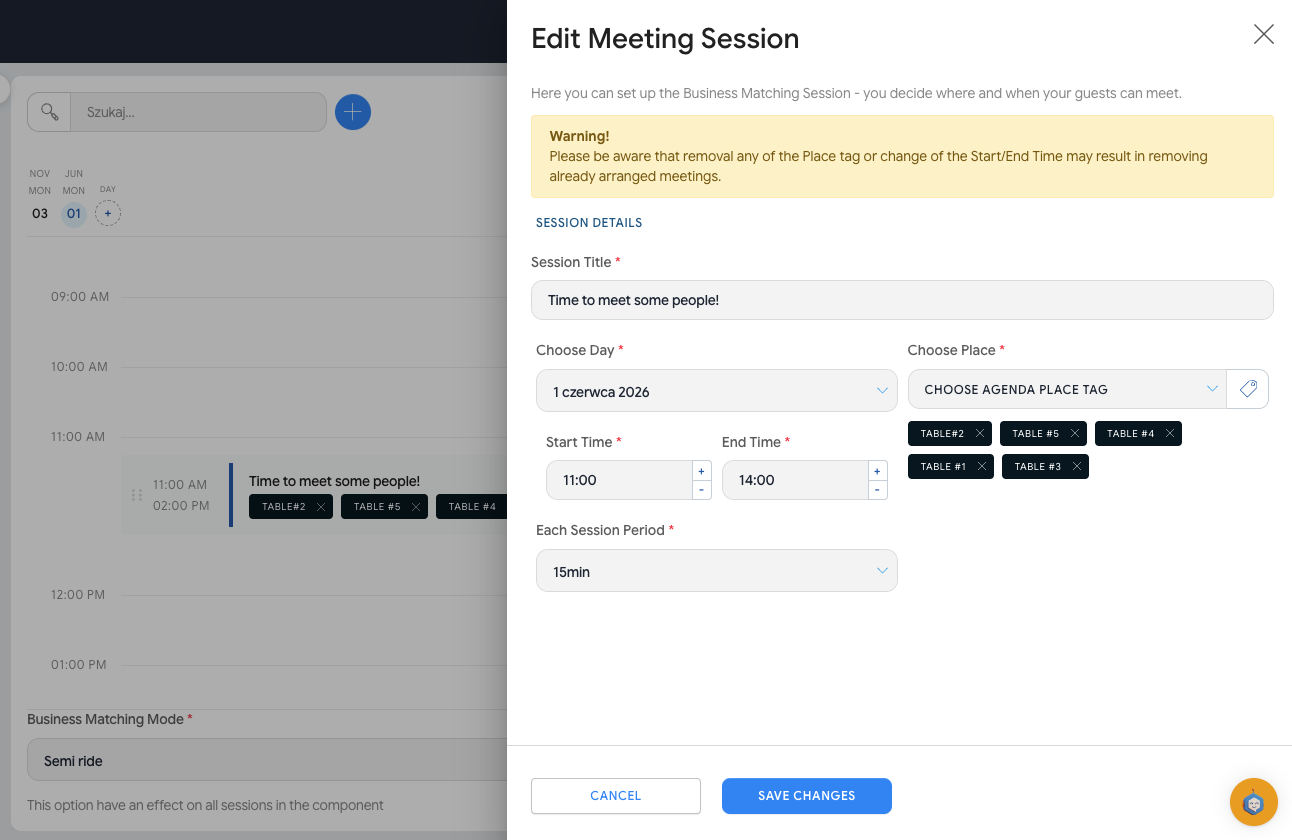
To add a session in the Business Matching component, click the “+” icon in the bottom right corner or hover over the selected time slot and choose the “+ Add Session” option.
Before saving the session:
give it a name,
fill in all required fields marked with an asterisk “*”,
choose the day,
set the time range for the session,
set the duration of individual meetings.
On a single day you can create several sessions, also with different settings.
Meeting places are defined using Agenda Place tags. Within a single session, you can add several locations.
This is exactly the list from which users will choose the meeting place with the other person. It’s worth adding locations that are convenient and natural for participants, for example a café, a meeting room, or a dedicated networking area.
A good practice is to add several places. The system makes sure that no more than one meeting is booked in the same place at the same time. This means that if, for example, the café at 10:00 is already taken, other users won’t be able to choose the same location for that same time slot.

You’ll set the duration of a single meeting in the Each Session Period field by choosing the right value from the dropdown list.
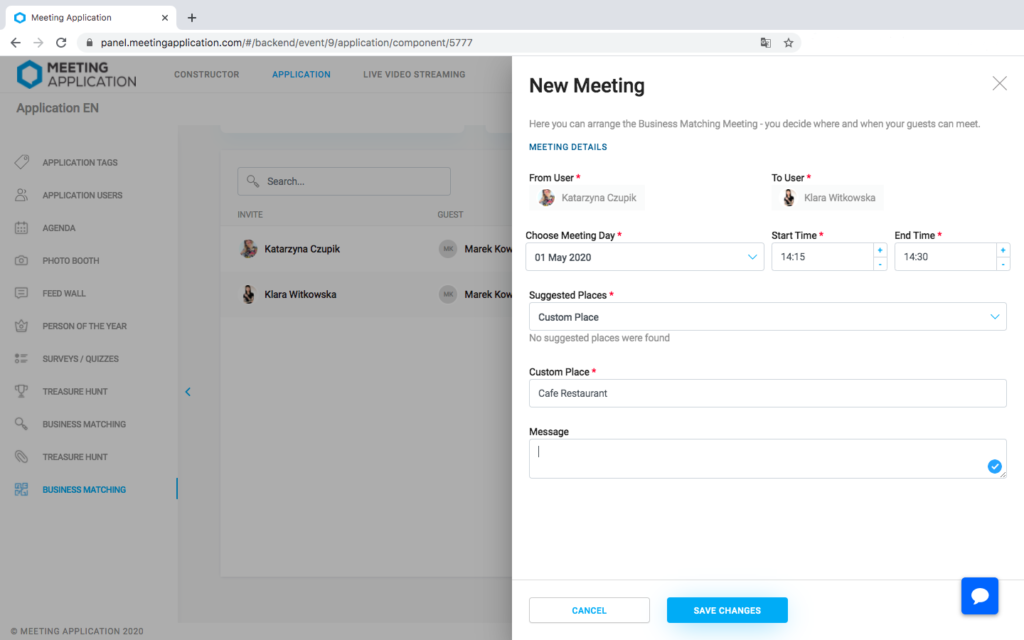
In any chosen type of Business Matching, it’s possible for admins to schedule meetings between event members. To create a new meeting, go to the Manage>Business Matching section and select “(+)” in the bottom right corner of the screen. In the form displayed by the system, you need to fill in all required fields specifying the time, place, and participants of the meeting. Users are selected based on the guest list of people logged into the app or imported into it via the admin panel. The saved meeting will be visible in the admin panel.
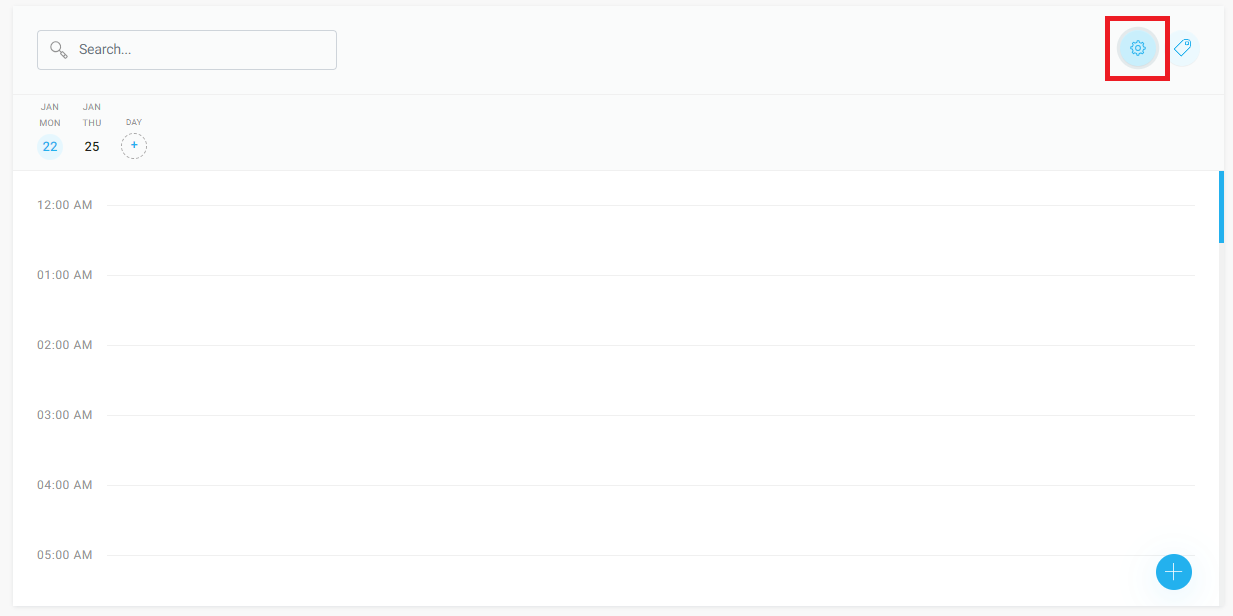
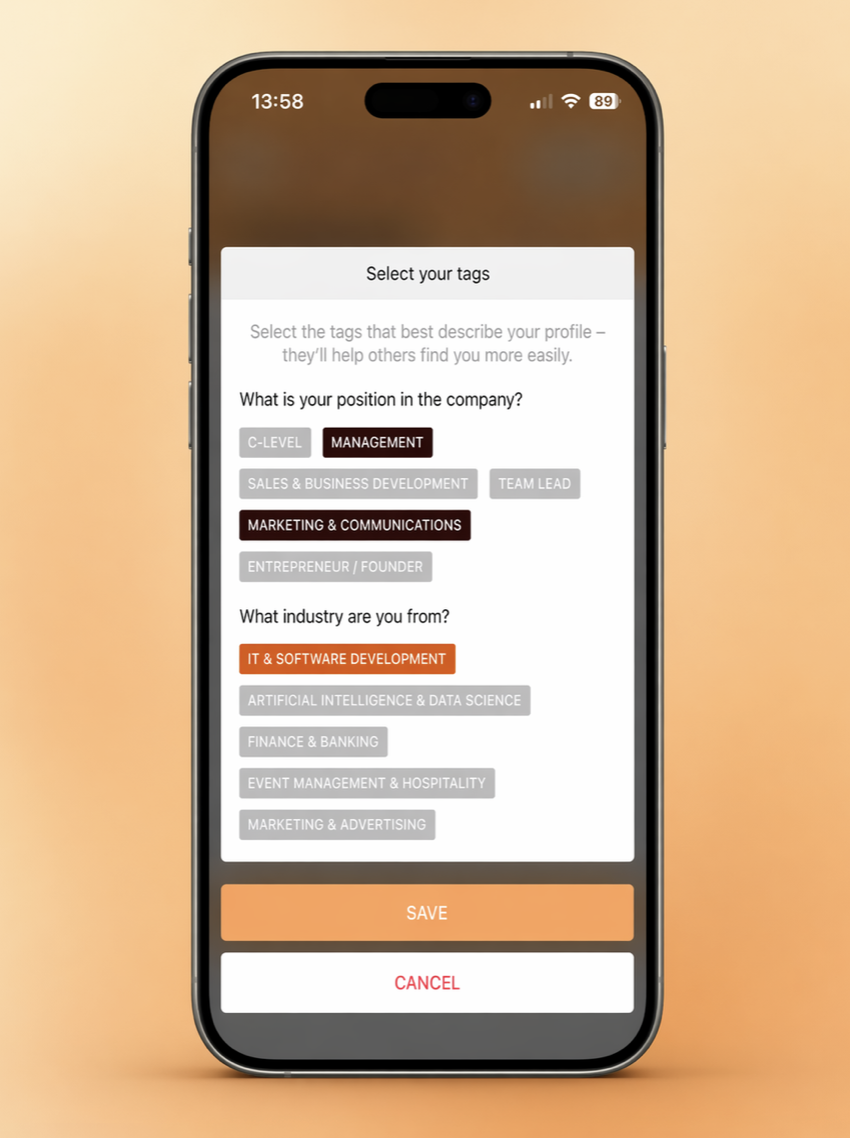
Optionally, you can let participants assign tags to themselves and filter participants based on what they chose for themselves.
To start creating labels from the Business Matching module, click the gear icon above the session calendar section and follow the instructions from  THIS ARTICLE.
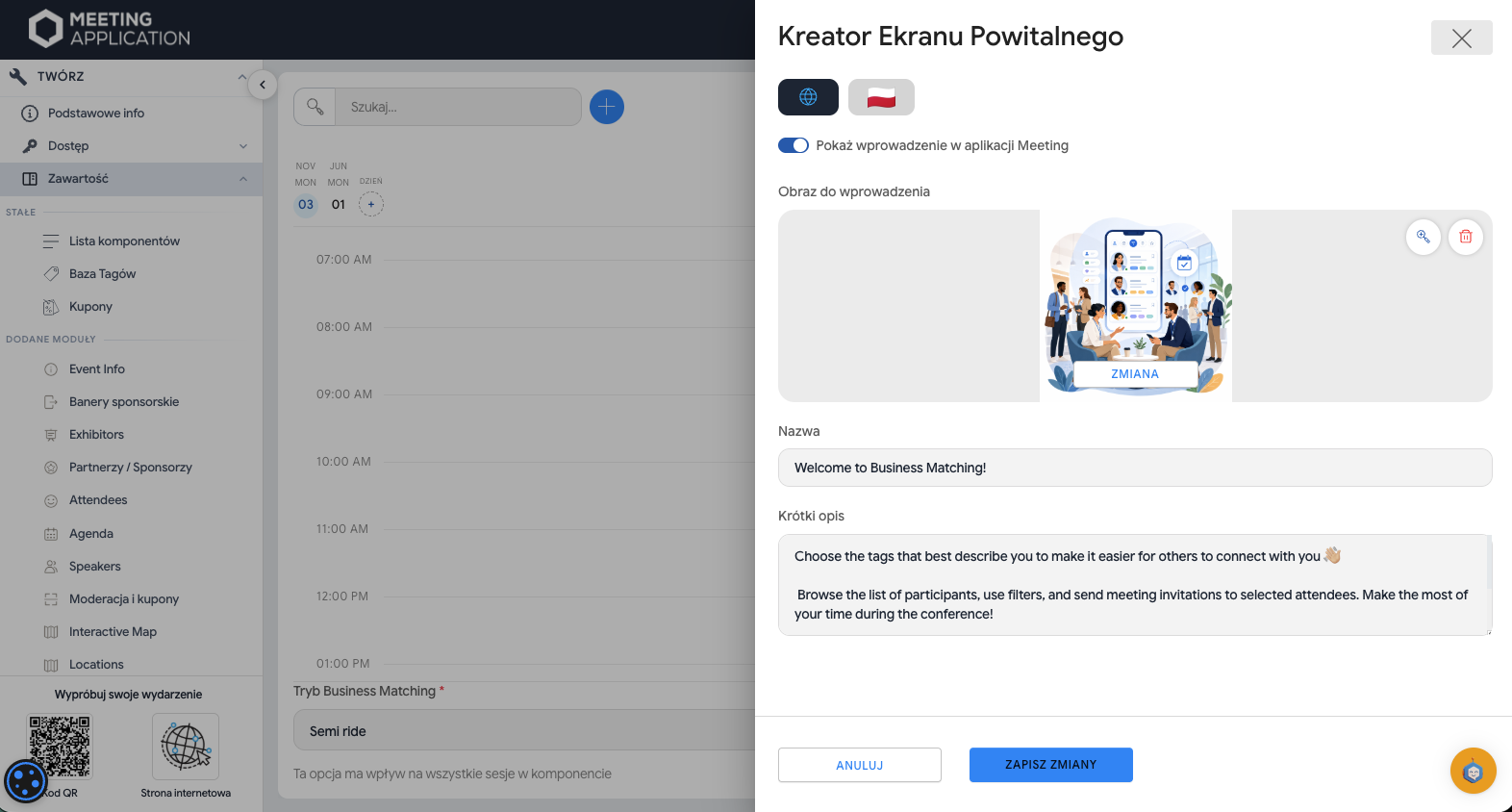
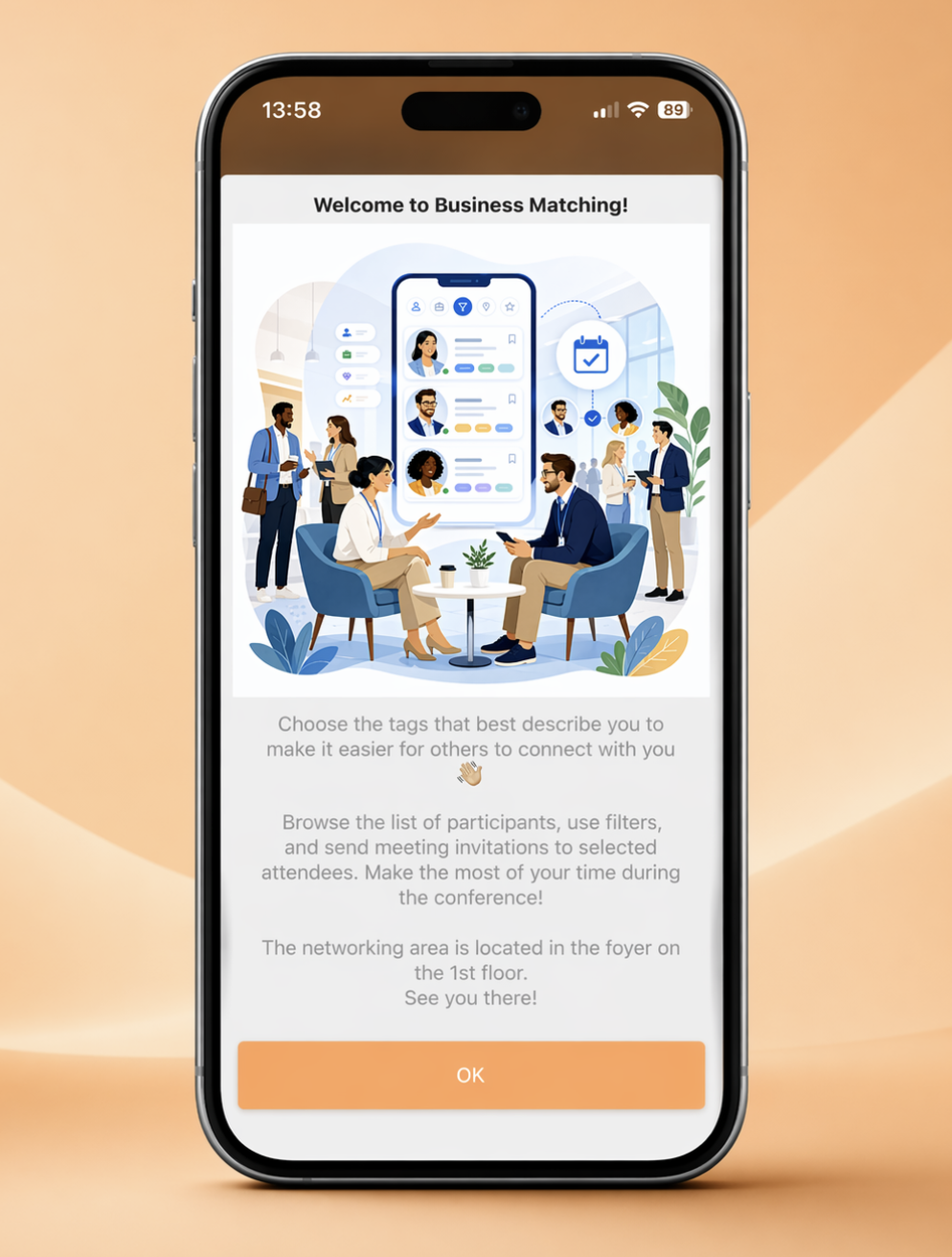
This section appears in the App when you launch the module for the first time, and you can open it again by clicking the "i" button in its top right corner. Add a message here for participants to encourage them to use this tool, and include instructions on how they can do it.
Complete it with an attractive photo to catch their attention
Photo on the welcome screen when entering the module:
Size: 1080 × 1920 px or 1024 × 1024 px
Format: JPG, PNG
Resolution: 72 ppi
FYI: this size displays the photo/banner at the full height of the screen; if you add a title and description, we recommend a 1:1 ratio to make sure the whole graphic is visible regardless of the text length
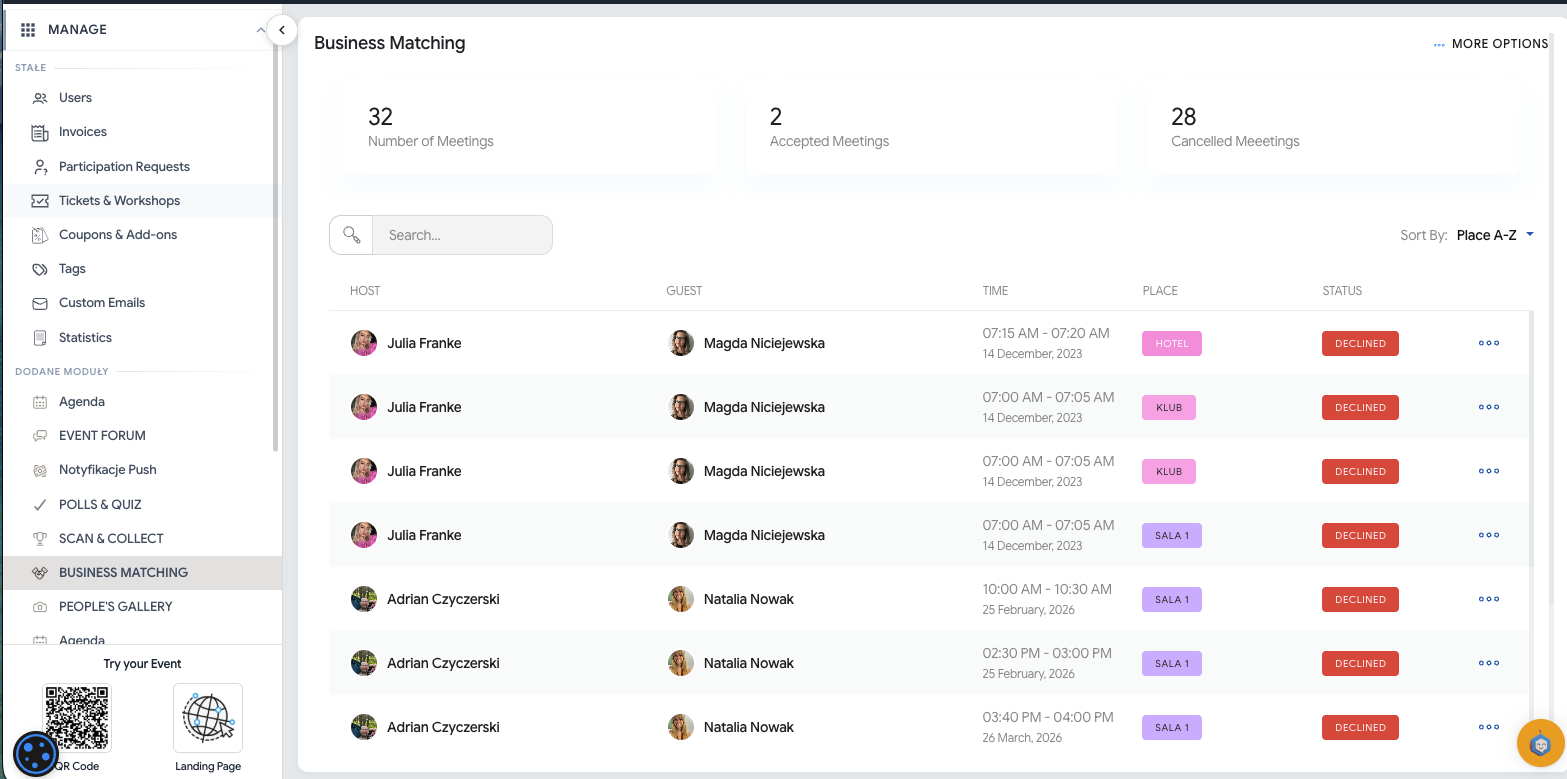
After the event ends, in the MANAGE → BUSINESS MATCHING tab you can check basic stats about the meetings arranged in the app. Here you’ll see the total number of all created meetings, as well as the number of accepted and canceled meetings. This way you can easily assess how much interest there was in the Business Matching module and what the actual networking activity of participants looked like.
After adding sessions, you let users arrange business meetings in the Schedule meetings component.
When entering the module for the first time, the logged-in user will see a welcome screen:
After clicking the pencil icon in the top right corner, the app user will pick the tags that describe them best:
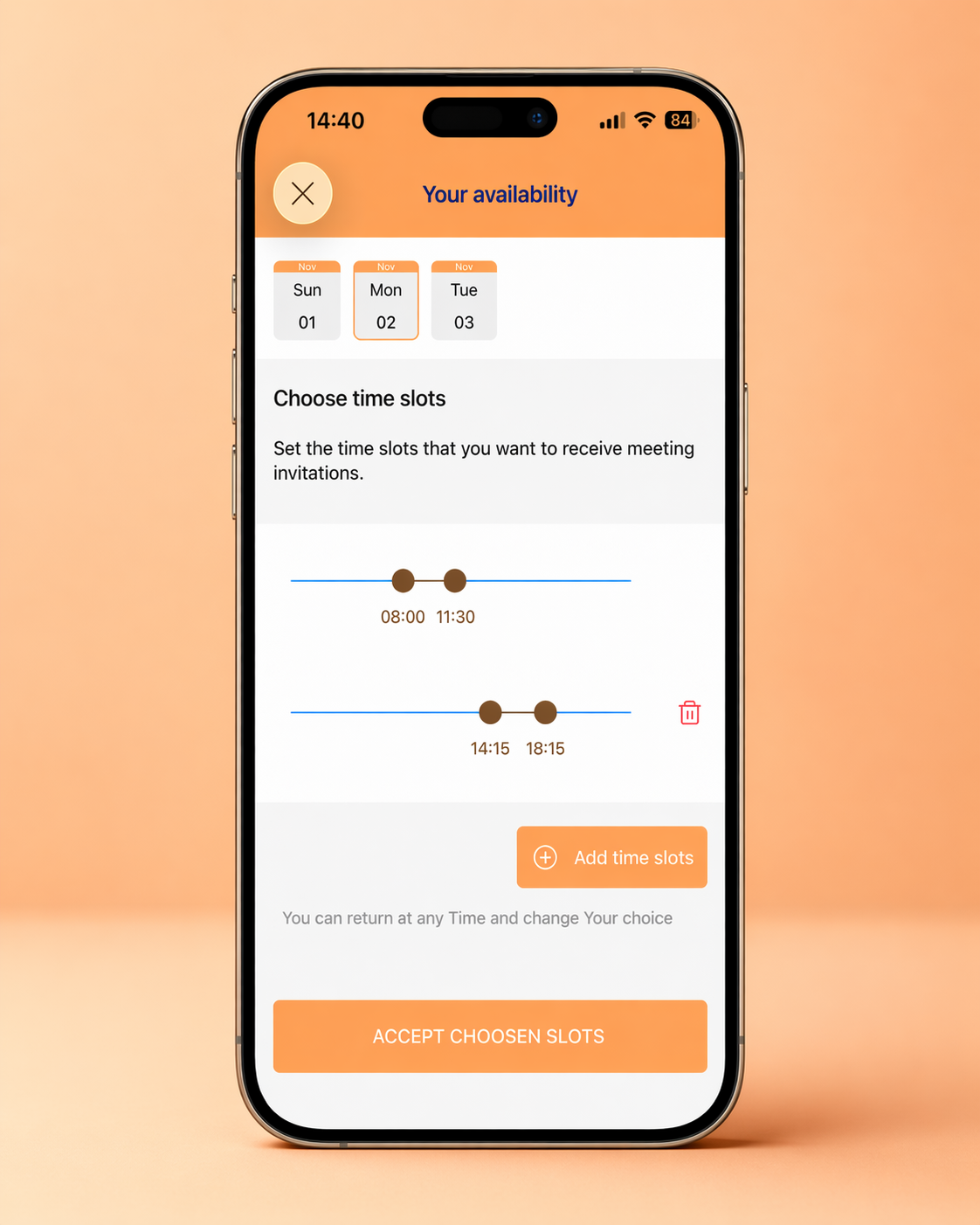
Each user can set their availability period so the app can suggest to guests who want to send them an invitation what the convenient meeting hours with that participant are:
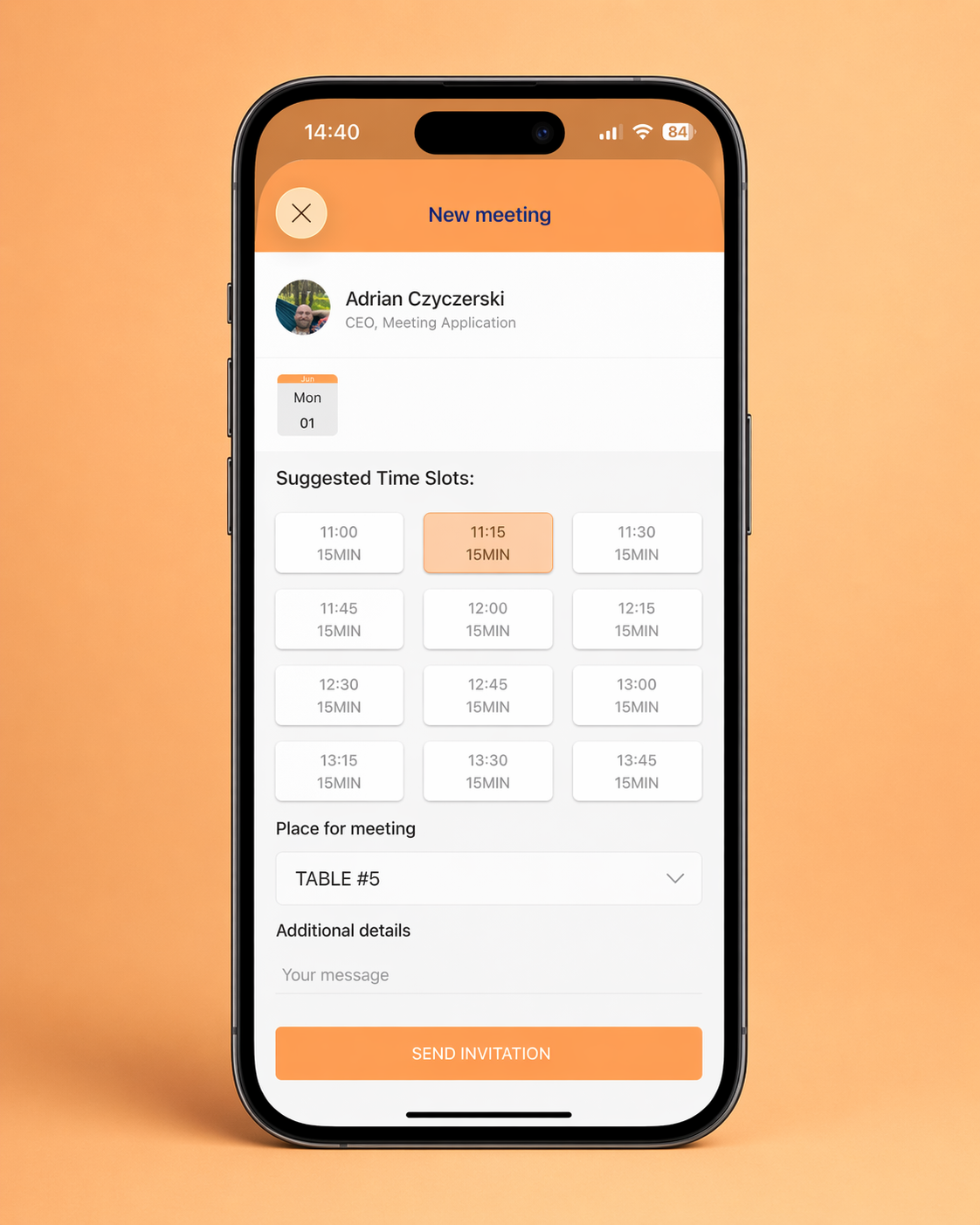
When setting up a meeting with a given participant, you choose the time, place and you can also leave an additional comment with information on why you actually want to meet:
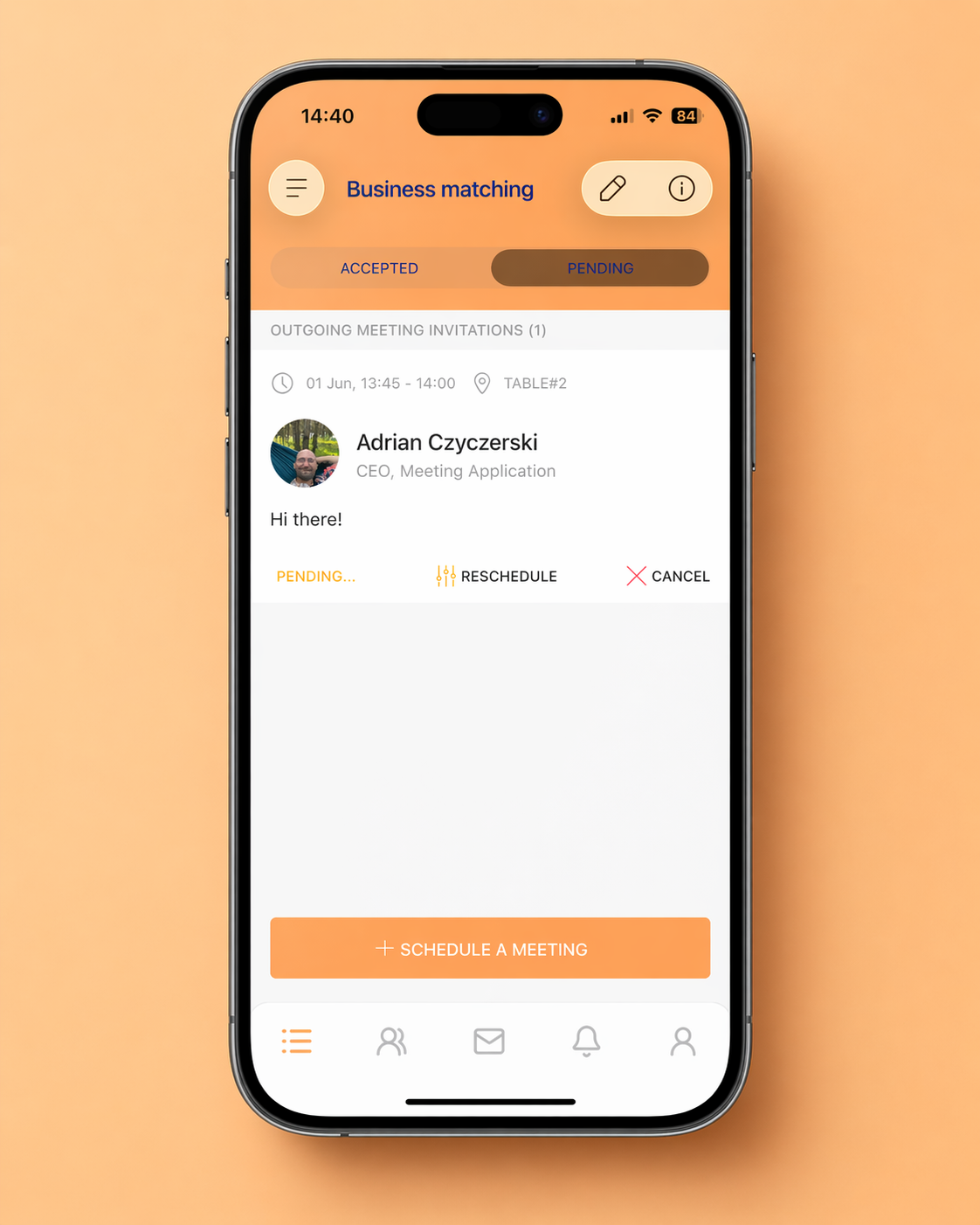
The sent invitation will appear on the invitee’s phone as a PUSH notification, and will also be visible in the Schedule meetings component, in the pending section. From here users can accept, reject, or reschedule the meeting:
Accepted meetings are saved in the component and are also visible in the agenda in the “my plan” section.