From February/April 2026, every B2B invoice issued for ticket sales must be sent to the National e-Invoice System (KSeF), in order to have legal force. The standard PDF file generated by the system becomes only a “visualization” of the document, while the fully valid invoice is a structured XML file to which the Ministry of Finance has assigned a unique KSeF ID number.
For Meeting Application to be able to automatically send your invoices to the government system and receive their identification numbers, you need to log in to KSeF and grant the appropriate permissions for Meeting Application.

Structured invoice: A document in XML format, the only legally recognized form of invoice in KSeF. The moment it is issued is considered to be when the system assigns it a unique, 35-character identification number (KSeF ID). Any visualization of such an invoice (e.g. in a PDF file) must have a QR code, which is used to verify the document outside the KSeF system and to quickly preview the data online.
B2B invoice (Business-to-Business): An invoice issued to another entrepreneur (company). It includes the buyer’s NIP number and must be sent to KSeF.
B2C invoice (Business-to-Consumer): An invoice issued to a natural person who does not run a business (a consumer). These documents are not sent to KSeF, and the buyer receives their visualization (e.g. a PDF file).
ZAW-FA: A power of attorney form submitted to the Tax Office.
KSeF Master: A person authorized to manage the e-invoicing process in the company.
Before you start, make sure that:
You have a seller’s VAT ID (NIP) that matches your company data.
You have access to Trusted Profile (Profil Zaufany), e-ID card (e-Dowód) or a qualified electronic signature.
For companies (e.g. limited liability companies): A ZAW-FA notification has been submitted to the Tax Office, authorizing a specific person to manage permissions in KSeF (individuals running a sole proprietorship are recognized automatically).

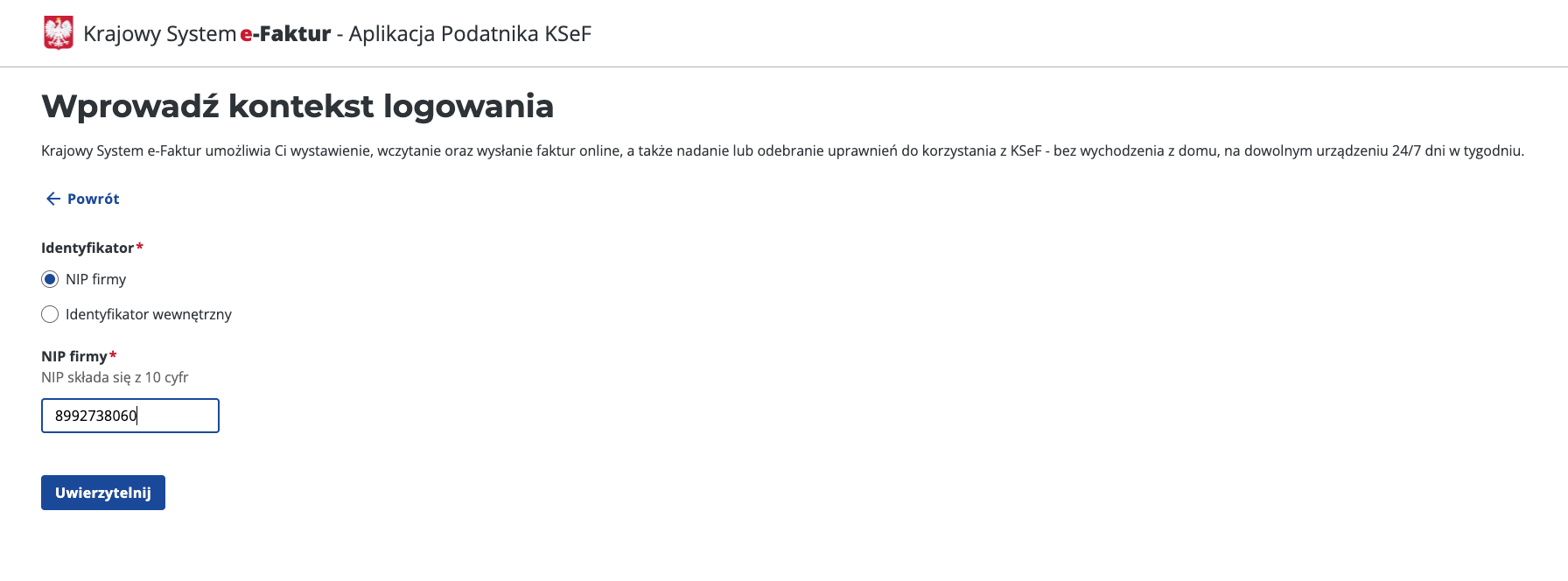
Go to ap.ksef.mf.gov.pl.
Select the option “Authenticate in the National e-Invoicing System”.
Choose the login method (e.g. Trusted Profile). The login must be performed by the so-called KSeF Master – this is the business owner or a person authorized to manage permissions (indicated in the ZAW-FA form).
Enter the login context: select company NIP and enter the NIP number, which will be the same number that appears as SELLER on the invoices for tickets.
Authenticate to continue.
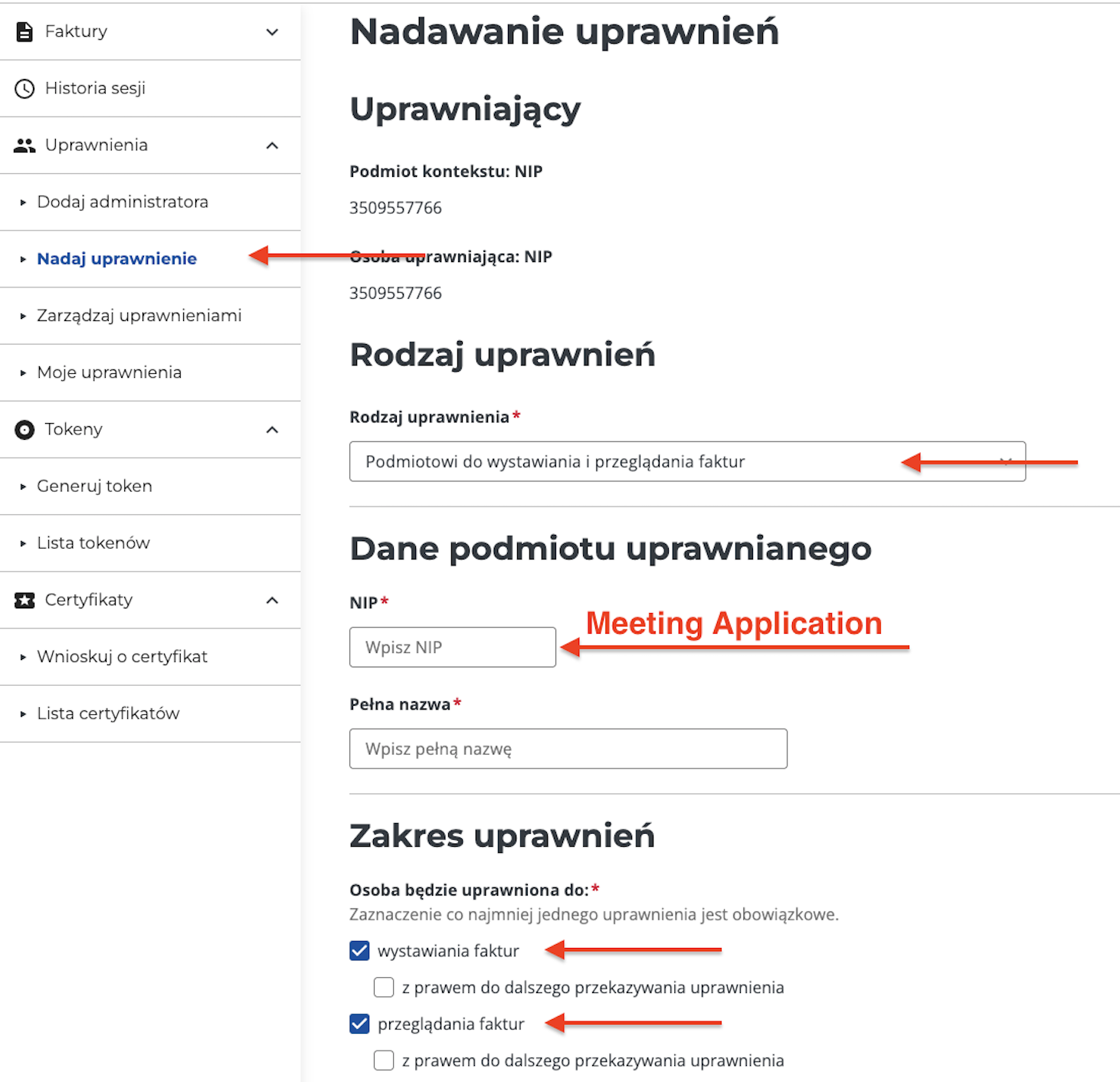
After logging in and signing the required documents, from the side menu select the tab Permissions -> Grant permissions.
Type of permission: Choose “Podmiotowi do wystawiania i przeglądania faktur”
Enter the Meeting Application VAT ID number, i.e.: 8992738060
Enter the full name that will let you later identify the specific entity in ministerial systems, i.e.: Meeting Application Sp. z o.o..
Scope of permissions: issuing invoices and viewing invoices
Click Save.
For the system to correctly generate structured invoices (XML) and send them to KSeF, it’s necessary to precisely fill in the data in the CREATE → ACCESS → TICKETS → Invoice tab.
This is a key section because the data contained here is transferred directly to the generated invoices and is used to identify the taxpayer in the government system.
NIP (Tax Identification Number): It must match the NIP of the entity for which the KSeF certificate was generated. An error in this field will prevent authorization with the Ministry of Finance gateway.
Company name and address details: Make sure they match the data registered with the Tax Office (white list of taxpayers). The system requires you to enter the street, building number, city and postal code, as well as select the country from the available list.
To be able to generate the JPK_FA file: be sure to fill in the voivodeship and country
In the JPK_FA information section, enter the four-digit tax office code, as well as the county and municipality US.
Based on these fields, the system will fill in the data in the JPK_FA file. You can export the ready file from the MANAGE → INVOICES. The JPK_FA file will be generated separately for B2B and B2C invoices.
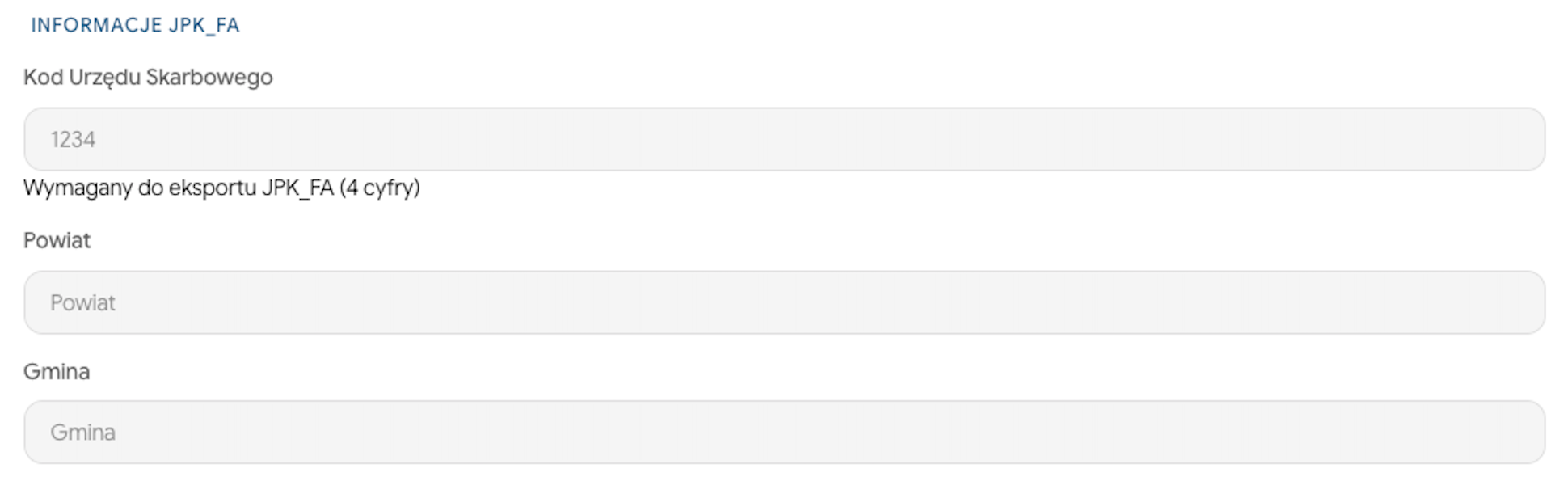
Based on these fields, the system will fill in the data in the JPK_FA file. You can export the ready file from the MANAGE → INVOICES.
Click Export in the top right corner, choose the format JPK_FA (Urząd Skarbowy), optionally set the date range for which you want to generate the file and click Export again. Dates in the JPK_FA file are saved in the Warsaw/Poland time zone.
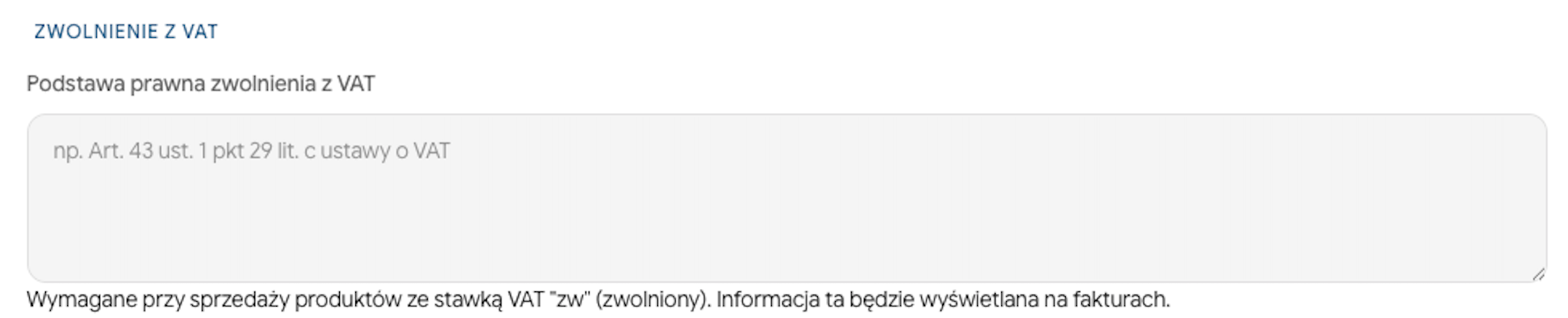
If your company uses a subjective or objective VAT exemption (ticket configuration with VAT rate zw), you need to specify the legal basis (e.g. VAT EXEMPTION section (e.g. art. 43 ust. 1 pkt 29 lit. c ustawy o VAT). This information will be automatically placed on the invoice when you choose the "zw" (exempt) rate, which is a necessary condition for the correctness of the XML schema in KSeF.
In the context of KSeF regulations coming into force in 2026, pay special attention to:
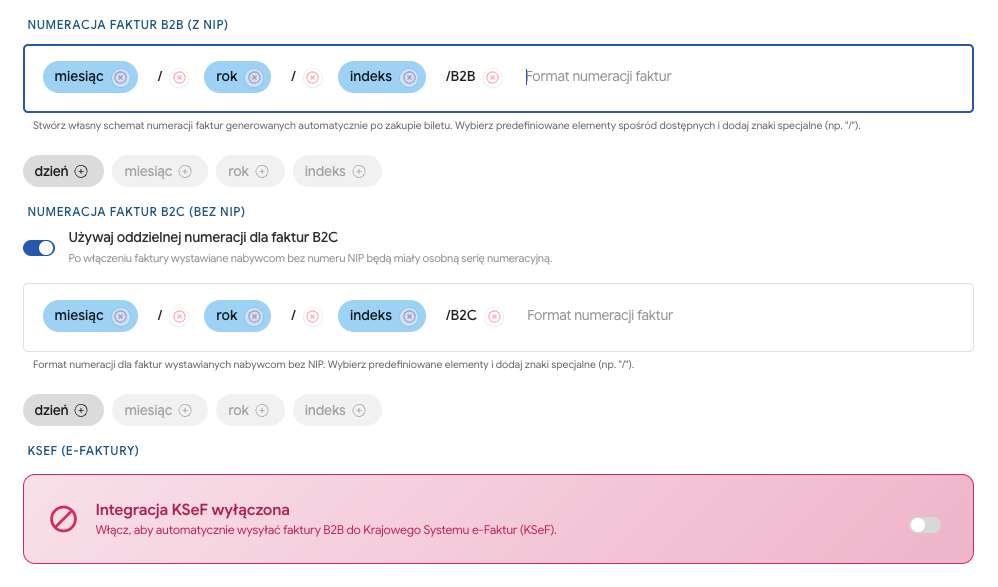
Separation of numbering series: Even though the decision about numbering is up to you, to meet KSeF’s technical requirements, numbering for B2B and B2C invoices should be separate. This lets the system accurately distinguish documents that must be sent to the Ministry of Finance gateway (B2B) from those that remain outside the system (B2C).
B2B numbering (WITH VAT ID): Intended for companies. These invoices are automatically converted to XML format and sent to KSeF. We recommend using a unique prefix (e.g. /B2B), which will make it easier for you to identify documents with an assigned KSeF ID number.
B2C numbering (WITHOUT VAT ID): Intended for private individuals (consumers). Under the current regulations, these invoices do not go to KSeF, therefore a separate numbering series is required.
The organizer has full freedom in configuring the order of data such as dzień, miesiąc, rok and indeks, as well as the option to add fixed elements (e.g. event name or the split B2B and B2C). Thanks to this, invoice numbers will be fully compliant with the regulations that apply to you and consistent with the company’s internal procedures.
The example below shows the correct configuration of invoice numbering, where in the places:
month - a number will be automatically inserted that corresponds to the month in which the ticket was bought
year - a number will be automatically inserted that corresponds to the year in which the ticket was bought
index - the next invoice number will be inserted
/B2B and /B2C - will be a fixed element, inserted at the end of each VAT invoice/personal invoice.
After filling in the above data and granting permissions in the Taxpayer Application (described in the first part of the article), activate the integration:
Toggle the switch KSeF integration enabled.

Click TEST CONNECTION.
Positive test - save the changes.
Failed test - check the data entered in the form, including the NIP number and full seller details. Verify whether the appropriate permissions have been granted in the KSeF system in line with the first part of the article.
After activating the authorization, the ticket sales process will change as follows:
Automatic sending: After the participant buys a ticket, the system generates an XML invoice and sends it to the Ministry of Finance API.
Assigning a KSeF ID: The Ministry assigns the invoice a unique 35-character identification number.
Visualization with a QR code: The buyer will receive an email with a PDF invoice that contains a mandatory QR code. This code allows instant verification of the document’s authenticity in KSeF.
You as the administrator can see the status of documents in the MANAGE → INVOICES.

The ticket purchase process is fully automated and goes through the following steps:
The participant goes to the event Landing Page and selects the ticket or tickets they want to buy.
In the second step of the cart, they enter the details of the person who will actually take part in the event (the ticket owner) and any add-ons (workshops, products).
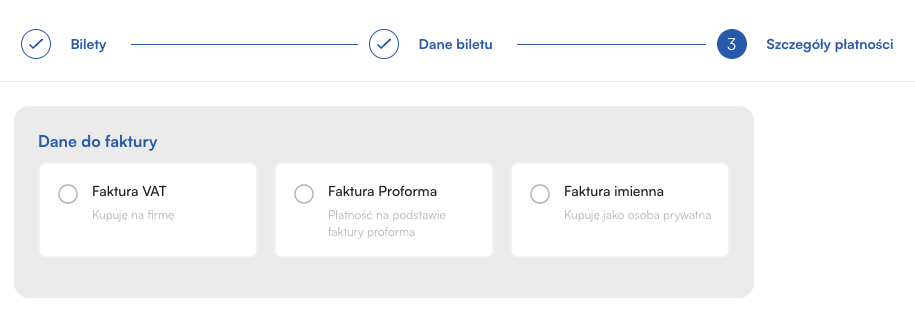
The buyer enters their details and selects the purchase type:
Private person (B2C): First name, last name, email address and home address are required (necessary for a personal invoice).
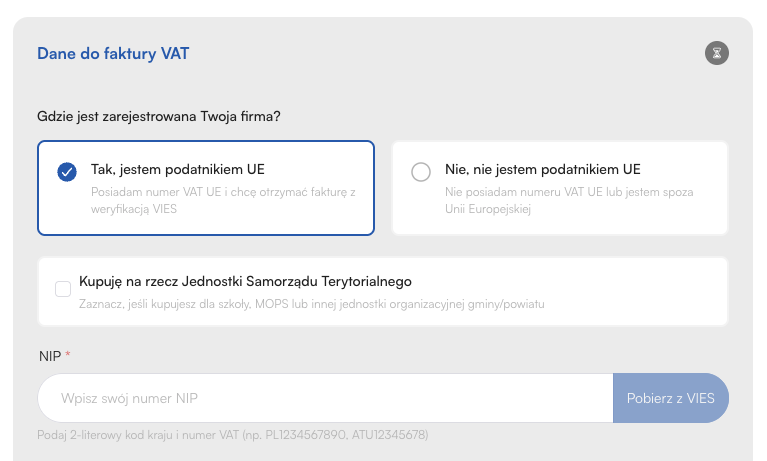
Company (B2B): The buyer enters the VAT ID. The system allows automatic fetching of data from the VIES database, which minimizes the risk of errors. If a VAT invoice (B2B) is selected, the next step is to choose:
Company from the European Union: The system allows automatic retrieval of data from the VIES database.
JST option: Only companies/entities registered in the EU can choose to buy as a Local Government Unit. In this scenario, the buyer provides the payer’s details (e.g. Municipality/County) and the recipient’s details (e.g. School/Institution). This process is fully compliant with the KSeF scheme.
Company from outside the European Union: Intended for global contractors. This allows correct issuance of an export invoice (e.g. with NP rate) and exclusion from reporting to the Polish KSeF.
Pro-forma option: If the organizer has configured this method, the buyer can choose a pro-forma invoice as a document confirming the intention to buy for a company (tax ID required)
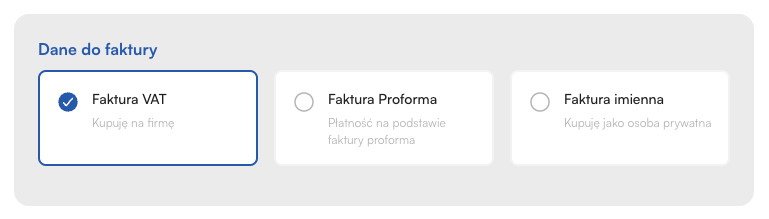
After filling in all required information, selecting the payment method and confirming the data by the buyer, the process moves to the payment gateway (PayU, AutoPay, Stripe) or a pro forma is generated.
Payment received via gateway: The system automatically recognizes that the ticket has been paid for.
Sending to KSeF (B2B): Invoices for companies with a VAT ID are queued and sent to the Ministry of Finance. The Meeting Application system makes sure the numbering stays chronological (even if there are outages of government servers) and retries sending until it’s accepted.
Receiving KSeF ID: After the 35-character number and QR code are assigned, the system generates a visual representation of the document.
Delivery to the buyer: A PDF invoice with a QR code is sent to the email address provided in step 3 of the checkout.
The organizer has full insight into the process in the MANAGE → INVOICES tab.
Status: Preview whether the invoice has been accepted by KSeF or an error occurred (e.g. inactive VAT ID).
Pending: The invoice has been correctly generated by the system and is in the queue to be sent to the Ministry of Finance gateway.
Sent: The document has been sent to KSeF and is waiting to be processed by government servers and assigned a unique identification number.
Accepted: The invoice has been successfully accepted by KSeF. It has received a 35-character KSeF ID number and a mandatory QR code. This is a legally binding document.
Rejected: KSeF has rejected the invoice (for example due to an incorrect buyer VAT number or inconsistencies between the substantive data and the XML schema template). In this case you need to verify the data and issue the document again.
Error: A technical error occurred while trying to establish a connection with the Ministry of Finance API (for example a certificate issue or server timeout). The system will automatically attempt to resend as part of the queuing process.
Not required: The document is not subject to the obligation to be sent to KSeF (for example B2C invoices for private individuals).
Additional features:
Downloading: Access to all documents with QR codes (for accepted invoices).
JPK_FA export: Option to generate a data package for the tax office with a B2B/B2C split.
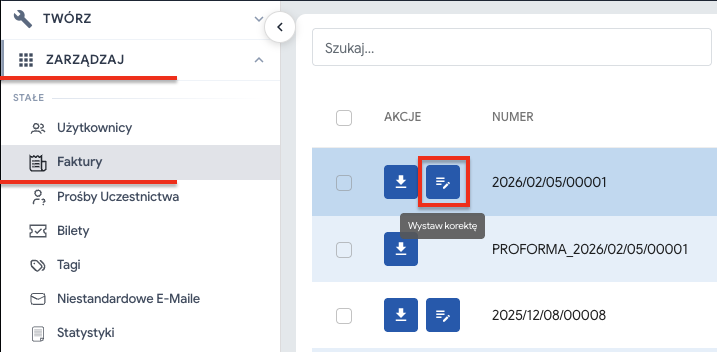
For VAT invoices sent to KSeF, the option to issue a correction will only appear once the system receives from KSeF a document with an assigned KSeF ID and a QR code.
Only after this step will you see an action on the invoice list that lets you start the correction. If the document has not yet been correctly processed by KSeF, the correction option will not be available.
To issue an invoice correction, go to the MANAGE → INVOICES tab, find the document that needs to be corrected and click the edit icon:
When issuing a correction, you must indicate the reason for the change.
You can use one of the predefined options:
correction of an obvious typo
refund
another reason
After choosing one of the first two options, the system will automatically suggest the justification text, which will be included in the notes on the correction. Remember that the suggested text is just a starting point – you can, but don’t have to, use our suggestion. The description of the reason can be edited however you like.
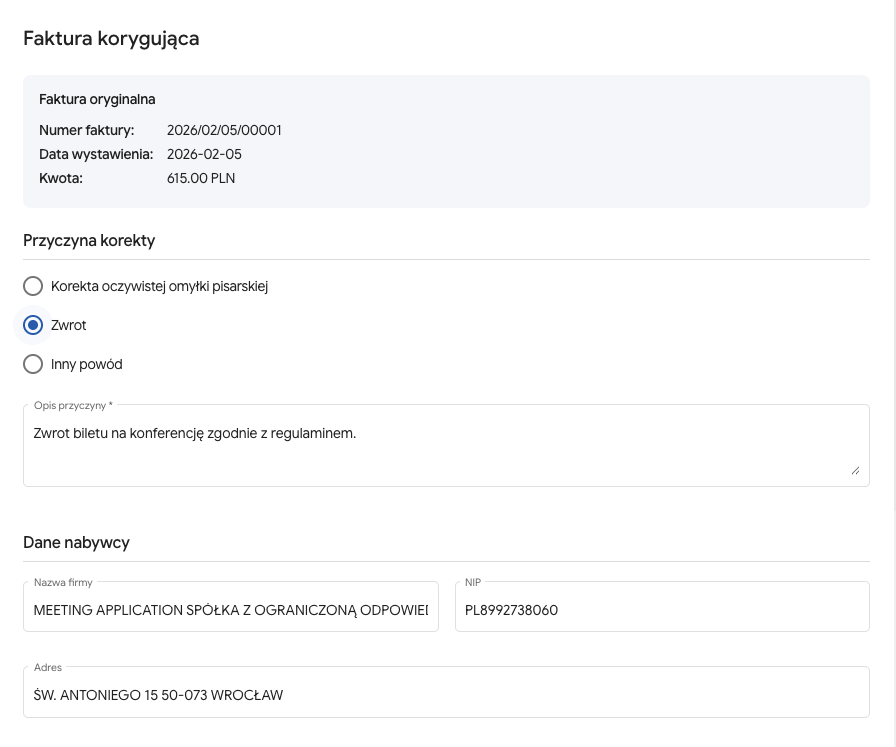
In the correction, you can update buyer details such as:
company or buyer name,
address,
VAT ID number.
Changing the VAT ID number for a VAT invoice sent to KSeF is treated as a change of the transaction party.
So in this case, the system doesn’t just correct the data. First it issues a zeroing invoice to the incorrect VAT ID number, and then automatically creates a new, correct VAT invoice to the proper number.
In the Invoice items section, you can only make changes that reduce the value of the document.
It’s possible to:
reduce the number of purchased items (ticket, add-on, workshop),
lower the unit price.
This solution works, for example, when you want to apply a discount after the sale or adjust the purchase down by one item.
Example: if the buyer accidentally bought one ticket too many, reduce the Quantity of items instead of trying to remove it from the invoice.
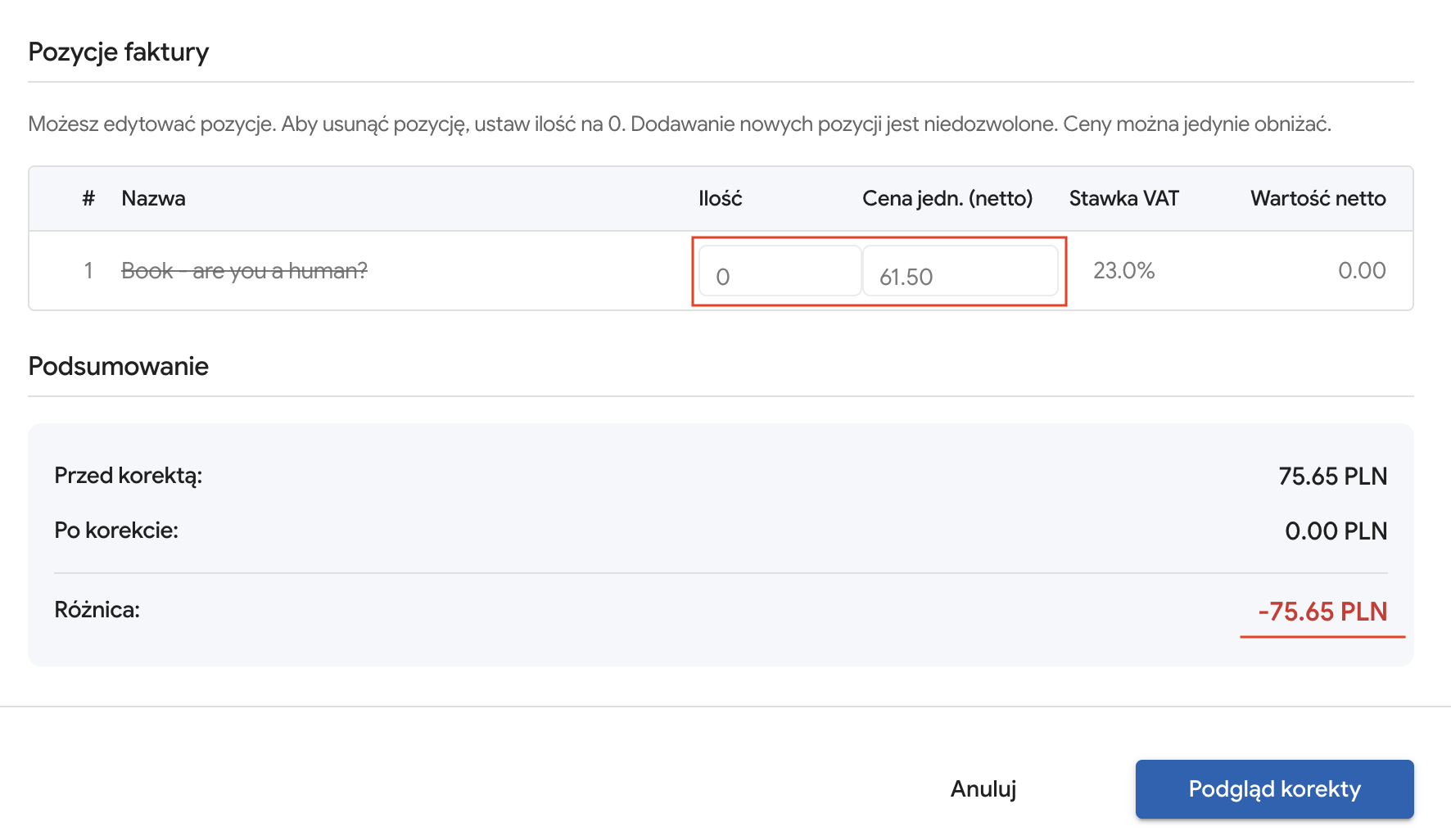
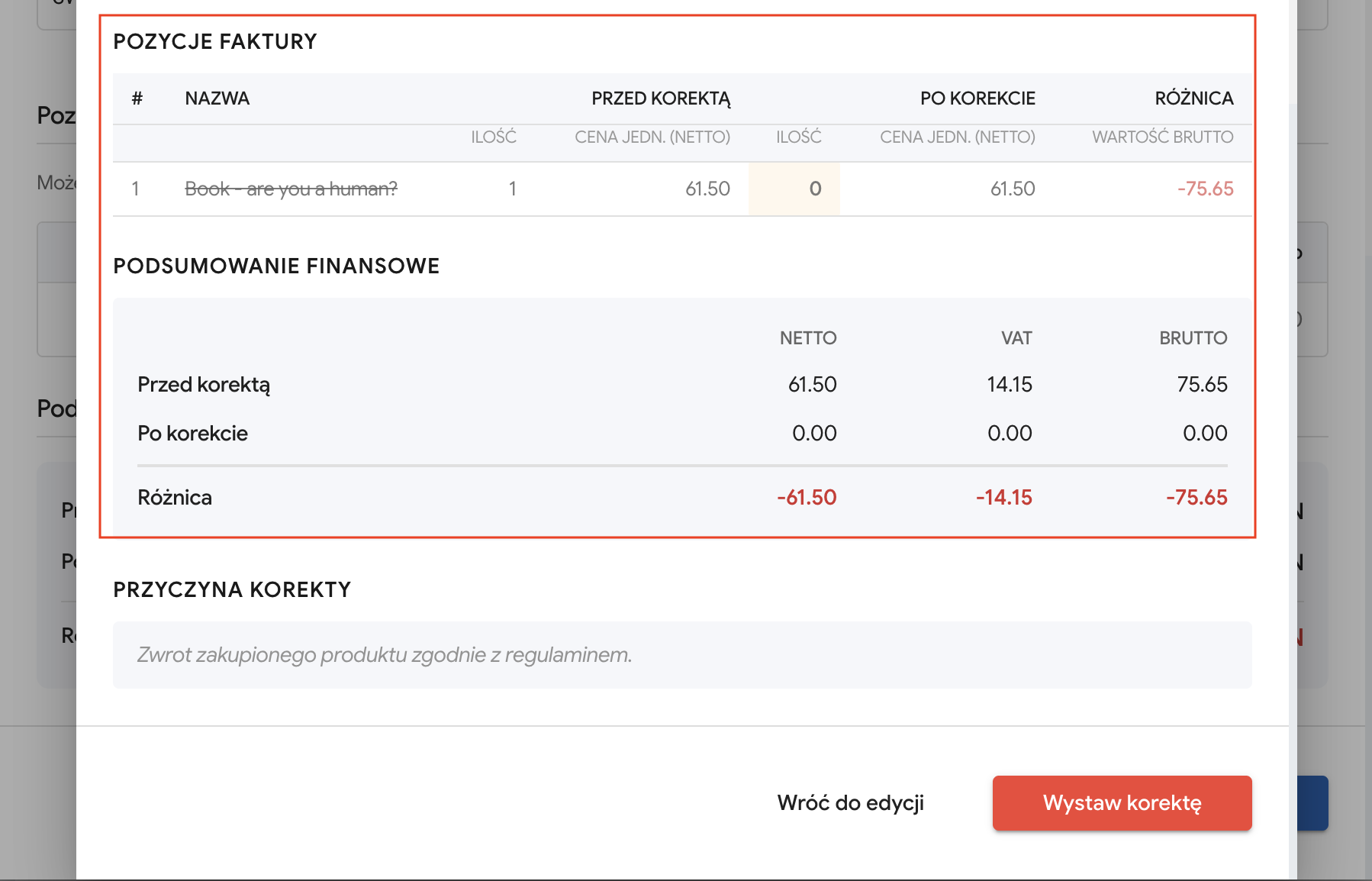
Example: if the buyer requested a refund and it was accepted, the invoice adjustment should zero out the items. This way the difference is negative, showing how much should be refunded to the buyer. To do this:
In the Quantity column, enter 0 so that the difference shows the amount to be refunded
Click the Correction preview button
Check in the summary window that the After correction invoice will be zeroed out.
Click the Issue correction button.
When issuing a correction, the system doesn’t let you:
increase the value of the invoice,
add a new item,
add a ticket that wasn’t bought in the original transaction,
remove an entire item from the document.
If you want to “remove” a ticket from the correction, you just need to reduce its quantity.
After going to the summary, the system will show a comparison of the data before and after the correction.
All changed fields will be marked in orange, so you can easily check what exactly was modified before approving the document.
After saving and successfully issuing the correction:
The document will be automatically sent to the buyer's email address.
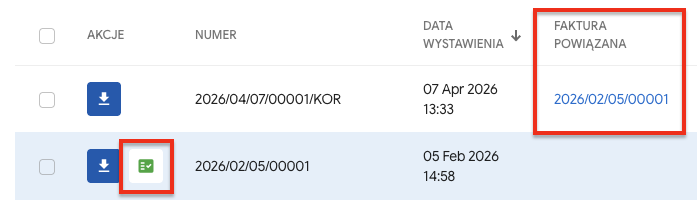
For the original VAT invoice, the blue icon with a pen will be replaced with a green checkmark indicating that the invoice already has a correction.
A new correcting document will appear on the list of invoices. Its numbering is analogous to the numbering of VAT invoices, with the note /KOR at the end.
In the Related invoice column, you can check which original invoice the given correction was issued for.
Have a great event with Meeting Application!