This article is about transferring the ownership of a dedicated app from the old Apple Developer account to a new one. The app itself doesn’t disappear from the App Store, it keeps its Bundle ID, ratings and reviews, and users can still normally download updates.
To move an iOS app to a new Apple Developer account, you need to do 3 steps:
The Account Holder of the current Apple Developer account starts the app transfer in App Store Connect.
The Account Holder of the new Apple Developer account accepts the transfer in their App Store Connect.
Once the transfer is completed, a person with the right permissions on the new account adds the user ios@meetingapplication.com and grants them the required access to App Store Connect and — depending on the chosen permission setup — access to the app.
Only after these three steps are done we’ll be able to continue and update the App 🙌🏽
You can learn more about the Dedicated App from THIS ARTICLE.
You can learn more about creating an Apple Developer account from THIS ARTICLE.
Before you move on to the first step, make sure that:
the new Apple Developer account is active,
the current Apple agreements are accepted on both accounts,
both accounts are not in the pending or changing state,
the app has already been published in the App Store before,
the app is not currently in preorder and is not in one of the blocking statuses:
Processing for Distribution
Waiting for Review
In Review
Accepted
Pending Developer Release
Pending Apple Release
Before starting the transfer, you’ll need the new account details:
Apple ID of the new account owner
Team ID of the new account
The steps below are performed by the Account Holder of the old account.
What needs to be done:
Log in to App Store Connect.
Go to Apps.
Open the correct app.
Go to App Information.
Scroll down to the Additional Information section.
Click Transfer App.
If Apple asks for a verification code, enter it.
If the system shows errors or blocks, you need to clear them first.
Enter the Apple ID Account Holder of the new account and the Team ID of the new account.
Accept the terms and click Request Transfer.
After this step, the app gets the status Pending App Transfer and waits for acceptance on the new account’s side. If it’s not accepted, the transfer expires after 60 days.
The steps below are done by the Account Holder of the new account.
What needs to be done:
Log in to App Store Connect.
Go to the Business section.
In the Agreements section, find the information about the app transfer.
In the App Transfers section, click Review.
Fill in the required data:
Support URL: https://meetingapplication.com
Marketing URL — https://meetingapplication.com
Privacy Policy URL — https://meetingapplication.com/en/privacy/
contact details for App Review
contact details for App Store
Choose whether the app should be available to all team users or only to selected roles.
Check the App Privacy section.
Accept the terms and click Accept.
Apple informs that the transfer itself may take up to 2 business days and during that time the app has the status Processing App Transfer. If the app requires additional export documentation, the status changes to Waiting for Export Compliance.
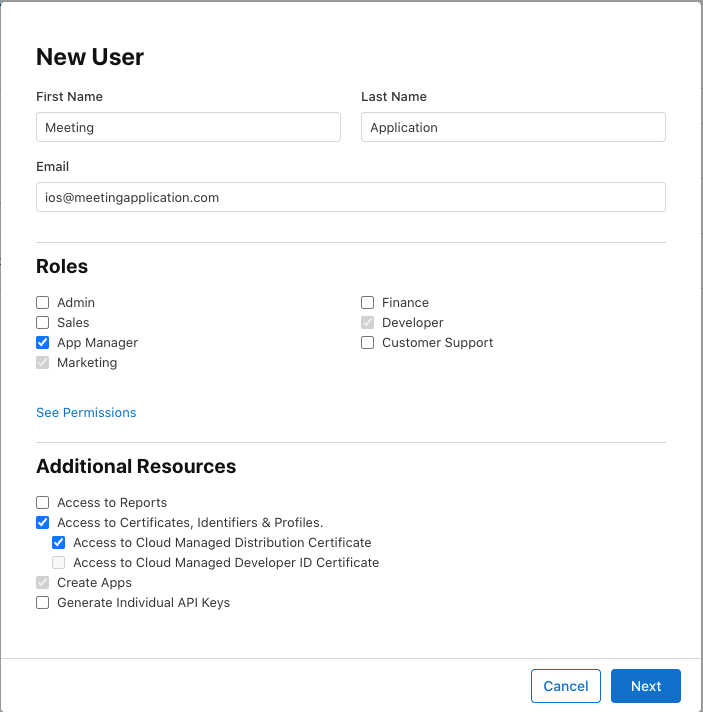
Just moving the app to the new Apple Developer account doesn’t automatically give us access to work on it yet. After the transfer is complete, you need to add the user ios@meetingapplication.com in the Users and Access section and give them the right permissions. Such a user can be added by someone with the role of Account Holder, Admin or App Manager.
Log in to App Store Connect.
Go to Users and Access.
In the People tab, click the + button.
Fill in the user details:
First Name: Meeting
Last Name: Application
Email: ios@meetingapplication.com
Set the role to App Manager.
If on the user adding screen Apple shows the additional resources section, check the permission Access to Certificates, Identifiers & Profiles.
Click Next.
If the account and selected permissions let you limit access to apps, choose the right app.
Click Invite.
ios@meetingapplication.com has already been added beforeYou don’t need to create them again. Just go to Users and Access → People, open the user account ios@meetingapplication.com, and then update their role, additional permissions and — if Apple allows it — access to the app via Manage Apps.
You can find the full guide on granting access HERE.
Most often the block appears when:
the new account hasn’t accepted all Apple agreements,
the app is in an invalid status, e.g. the app is in review,
someone is trying to make a transfer from an account that doesn’t have the Account Holder role,
after the transfer, no one assigns the app to us as Meeting Application in Users and Access,
Have a great event with Meeting Application