The article is about transferring a dedicated app’s ownership from the old Apple Developer account to a new one. The app itself doesn’t disappear from the App Store, it keeps its Bundle ID, ratings, and reviews, and users can still normally download updates.
To transfer an iOS app to a new Apple Developer account, you need to follow 3 steps:
The Account Holder of the current Apple Developer account starts the app transfer in App Store Connect.
The Account Holder of the new Apple Developer account accepts the transfer in their App Store Connect.
Once the transfer is completed, a person with the right permissions on the new account adds the user [email protected] and gives them the required access to App Store Connect and — depending on the chosen permission setup — access to the app.
Only after these three steps are done will we be able to continue by updating the App 🙌🏽
You can learn more about the Dedicated App from THIS ARTICLE.
You can learn more about creating an Apple Developer account from THIS ARTICLE.
Before you move on to the first step, make sure that:
the new Apple Developer account is active,
current Apple agreements are accepted on both accounts,
both accounts aren’t in a pending or changing state,
the app has already been published in the App Store before,
the app is not currently in preorder and is not in one of the blocking statuses:
Processing for Distribution
Waiting for Review
In Review
Accepted
Pending Developer Release
Pending Apple Release
Before starting the transfer, you’ll need the new account details:
Apple ID of the new account owner
Team ID of the new account
The following steps are done by the Account Holder of the old account.
What needs to be done:
Log in to App Store Connect.
Go to Apps.
Open the right app.
Go to App Information.
Scroll down to the Additional Information section.
Click Transfer App.
If Apple asks for a verification code, enter it.
If the system shows errors or blocks, remove them first.
Enter the Apple ID Account Holder of the new account and the Team ID of the new account.
Accept the terms and click Request Transfer.
After this step, the app gets the status Pending App Transfer and waits for acceptance on the new account’s side. If it’s not accepted, the transfer expires after 60 days.
The following steps are done by the Account Holder of the new account.
What needs to be done:
Log in to App Store Connect.
Go to the Business section.
In the Agreements section, find the information about the app transfer.
In the App Transfers section click Review.
While accepting the transfer, Apple may ask you to fill in the basic app information again. In that case, enter:
Support URL: https://meetingapplication.com
Marketing URL: https://meetingapplication.com
Privacy Policy URL: https://meetingapplication.com/en/privacy/
Next, fill in the contact details for App Review and App Store and move on.
In the User Access section, choose whether the app should be available to all team users or only to selected roles.
Check the App Privacy section.
Accept the terms and click Accept.
Apple informs that the transfer itself can take up to 2 business days and during this time the app has the status Processing App Transfer. If the app requires additional export documentation, the status changes to Waiting for Export Compliance.
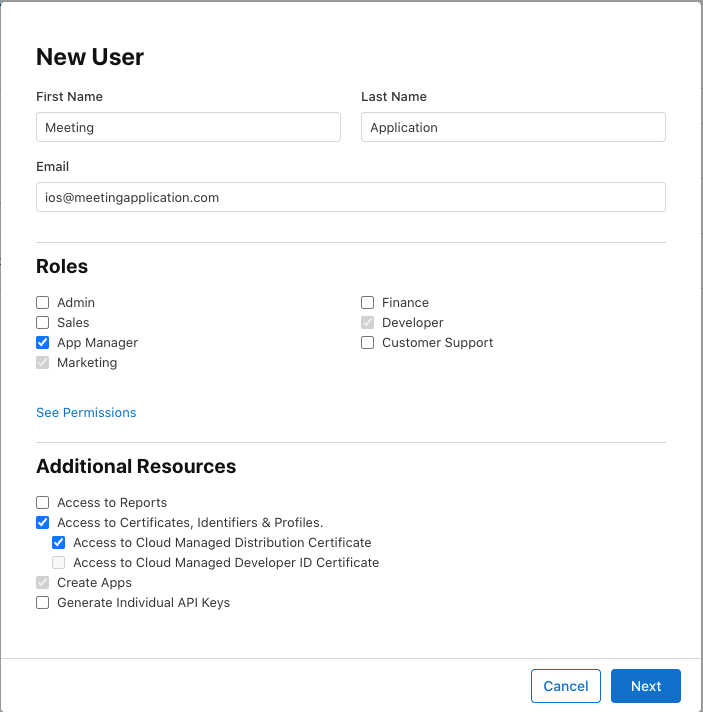
Simply moving the app to the new Apple Developer account doesn’t automatically give us access to work on it yet. After the transfer is completed, on the new account you need to add the user [email protected] in the Users and Access section and grant them the appropriate permissions. Such a user can be added by someone with the role Account Holder, Admin or App Manager.
Log in to App Store Connect.
Go to Users and Access.
In the People tab, click the + button.
Fill in the user details:
First Name: Meeting
Last Name: Application
Email: [email protected]
Set the role to App Manager.
If on the user add screen Apple shows the additional resources section, check the permission Access to Certificates, Identifiers & Profiles.
Click Next.
If the account and selected permissions let you limit access to apps, choose the right app.
Click Invite.
[email protected] has already been added beforeYou don’t need to create them again. Just go to Users and Access → People, open the user account [email protected], and then update their role, additional permissions and — if Apple allows it — access to the app via Manage Apps.
You can find the full guide on how to grant access HERE.
Most often the block appears when:
the new account doesn’t have all Apple agreements accepted,
the app is in an incorrect status, e.g. the app is in review,
someone is trying to make a transfer from an account that doesn’t have the Account Holder role,
after the transfer no one assigns the app to us as Meeting Application in Users and Access,
This process applies only to organization accounts. Apple also notes that there can be only one person with the Account Holder role in the team – this is the person who signs agreements, renews membership, and has full permissions.
The new person who’s going to take over the Account Holder role should:
already be added to the organization’s team,
have their own Apple Account,
have two-factor authentication enabled,
be an employee of the organization and be authorized to enter into agreements on its behalf.


For organizations, Apple lets you add team members through Users and Access. These users get access not only to App Store Connect, but also to other resources and benefits of Apple membership. That’s exactly what makes an organization account different from an individual account, where additional users only have access to App Store Connect and aren’t members of the Apple Developer Program team.

Log in to App Store Connect.
Go to Users and Access.
In the People tab, click the + button.
Enter:
first name,
last name,
email address of the new person.
In the role field, select Admin.
Click Next.
If the system shows app access settings, fill them in as needed.
Click Invite.
After sending the invitation remember that:
the invitation expires after 3 days,
you can send it again later,
the user gets an activation email,
they can log in with an existing Apple Account or create a new Apple Account during activation.
Only when the person becomes a member of the organization’s team can they be a potential candidate to take over the Account Holder role. What does it mean to “become a member of the team?”
to be added through Users and Access on the organization’s account,
accept the invitation,
activate access.
Step 1. Log in to the Apple Developer account
The current Account Holder logs in at Apple Developer. Then goes to Membership details in the top menu.
Step 2. Open membership settings
At the bottom of the Membership details section click Update your information.
Step 3. Start the role transfer
In the dialog window click Transfer Account Holder role. Then choose Choose a candidate.
Step 4. Choose the new Account Holder
From the list, pick an eligible person from the team and click Transfer. The new candidate should be a team member and have the authority to sign agreements on behalf of the Organization.
Step 5. Accept the transfer agreement
The current Account Holder has to read the Account Holder Transferor Agreement and click Agree. This completes the part on the current account holder’s side.
Step 6. The new person gets a message from Apple
The selected person will get an email from Apple with instructions on how to finish the process.
Step 7. The new person verifies their identity – this step might happen, but doesn’t have to
In some countries and regions, the new Account Holder first has to go through identity verification in the Apple Developer app.
Step 8. The new person accepts the role
The new candidate logs into the Apple Developer account. The account must have two-factor authentication enabled. Then:
clicks Review Agreement,
reads the Account Holder Transferee Agreement,
checks the checkbox,
clicks Agree.
Step 9. Check the membership subscription issue
If the account was created through the Apple Developer app and the membership renews as an automatic subscription, after the transfer the previous Account Holder has to turn off auto-renew in Settings > Apple Account > Subscriptions > Apple Developer Program > Cancel Subscription. Only then can the new Account Holder renew the membership from their own account. Apple warns that without this, the previous person may still be charged, and the membership still won’t renew correctly.
What happens after it’s done?
After the transfer is completed, Apple sends a notification to the team admins that the Account Holder has changed. The new Account Holder takes over responsibility for accepting agreements, managing app submissions, and renewing the membership.
Most often the problem appears when:
the account is individual, and the situation doesn’t fall under Apple’s exceptions,
a membership renewal is in progress,
the new candidate doesn’t have 2FA enabled,
the new person has to go through identity verification, and this step hasn’t been done.
Have a great event with Meeting Application